All Work (Service Twin)
Last updated
Welcome to the All Work section of the Service Twin app. This is where you will find all outstanding Visits in your organization.
Overview
First, a little overview of what the screen looks like.
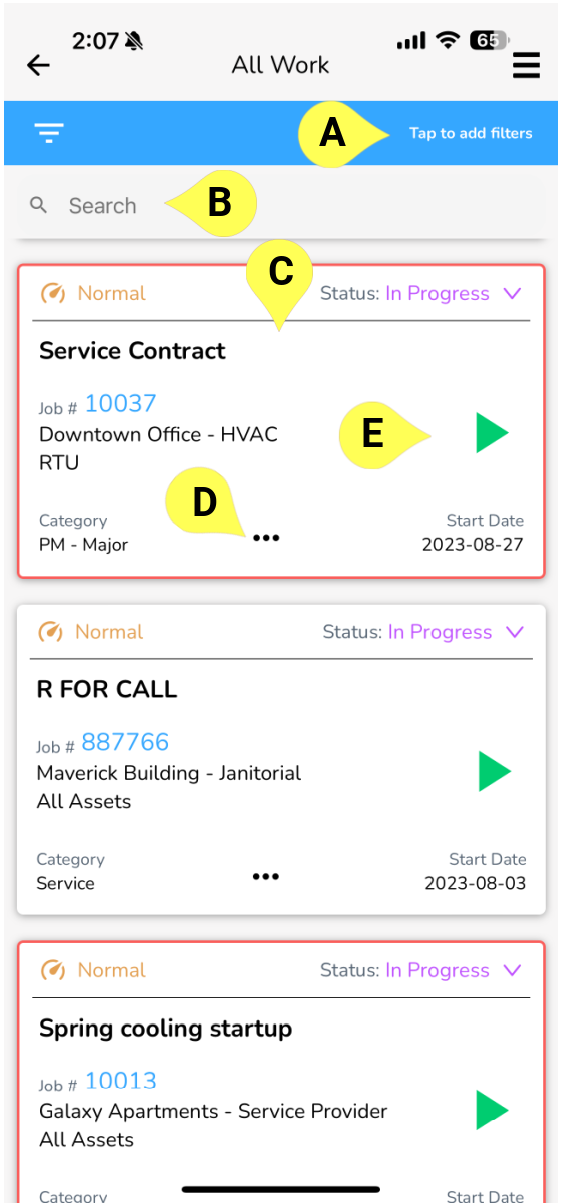
A - Filters Use this to narrow down the list of jobs you see. Sometimes this list may be quite long and it can be more difficult to locate the one you are looking for. The filter option allows you to narrow this list down to a specific status or to see the ones that have been assigned to you only. More on this below.
B - Search Similar to the filter function, the search bar at the top gives you the option to type any keyword to narrow your search down so you can quickly find the job you are looking for.
C - Visit card Each Visit is grouped in a "card format" and will show all the information you need to know about that Visit. More on this below.
D - Expand for more info Tap the three dots at any time to expand the card and see additional information about the job. More on this below.
E - Start Tap the green arrow to start the job.
Visit Card (expanded)
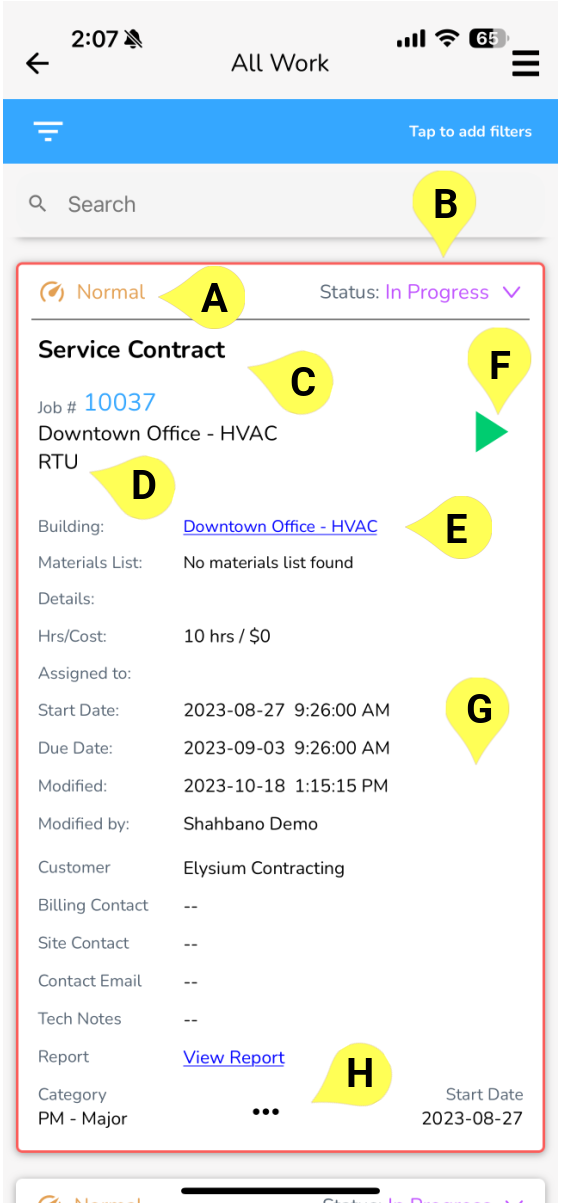
A - Priority Priorities range from Low to Normal to High.
B - Status View or change the status by tapping on the status in the top-right corner.
C - Job title
D - Asset Group This shows the tech which asset group needs to be inspected in this job.
E - Building Address and Contacts
F - Start Tap the green arrow to start the job.
G - Job information See the table below for descriptions of each field.
H - Collapse Tap the three dots again to collapse the additional information section.
| Materials List | Materials list provided by the office team for this Visit |
|---|---|
| Details | Details about the job are listed here. |
| Job # | The Job # is listed here. |
| Hrs/Cost | This is the estimated or agreed upon number of hours and cost as determined by the office or the agreement with the client. |
| Assigned to | If the job is assigned to any one or multiple people, their name will be displayed here. |
| Start Date | The start date of the job is displayed here. |
| Due Date | The due date of the job. |
| Modified | The date when information about this job was last modified. |
| Modified by | The name of the person who last modified any details about the job. |
| Customer | The name of the customer for whom this job is being done |
| Billing Contact | The name of the person who will be billed for this Job. |
| Site Contact | The contact of the person on site. |
| Contact Email | The email of the person on site. This email will be used when sending out a PDF of the Job report. |
| Tech Notes | Notes added by the office for technicians on site. |
| Report | Link to the job report that shows work completed, labour hours and materials. This can be signed and sent as a PDF. |
| Category | This is the job category as set by the office. |
Filters
Use the filters function to narrow down the number of jobs you see so you can quickly find the job you're looking for.
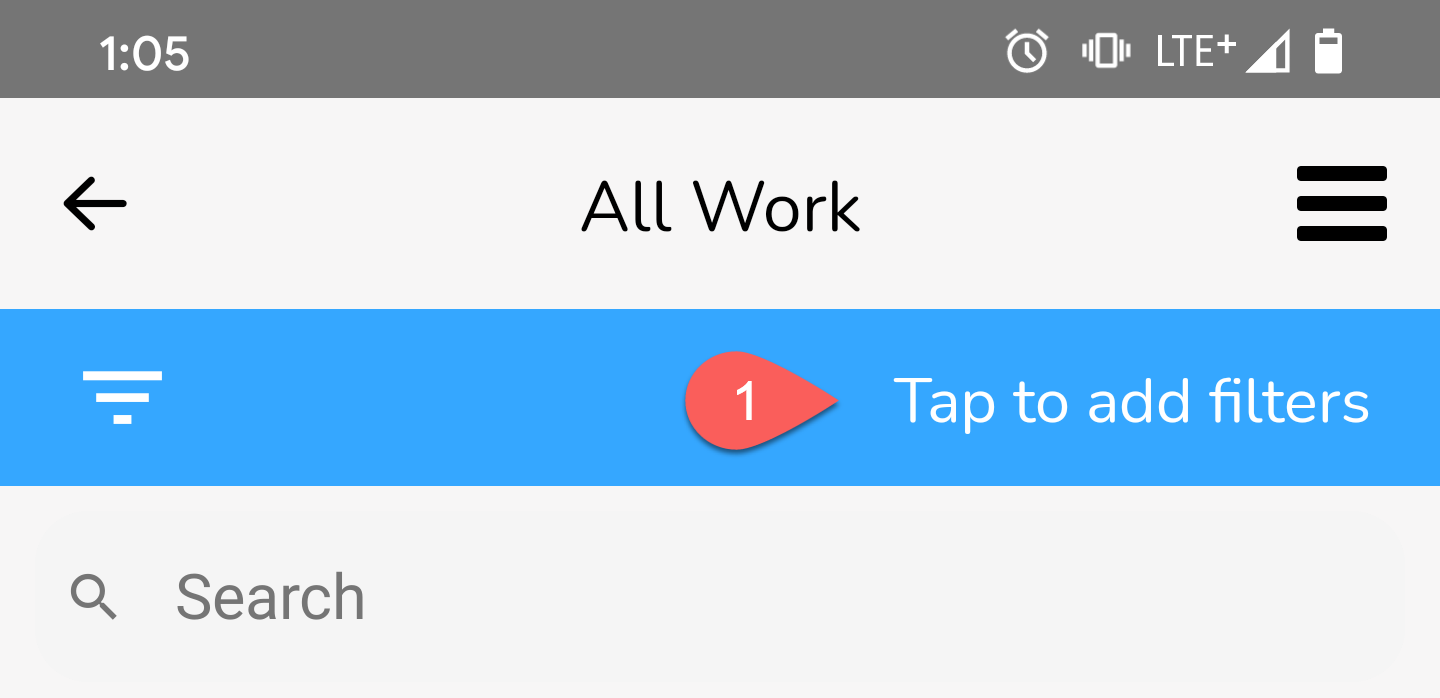
Tap anywhere on the blue bar at the top to access the Filters screen.
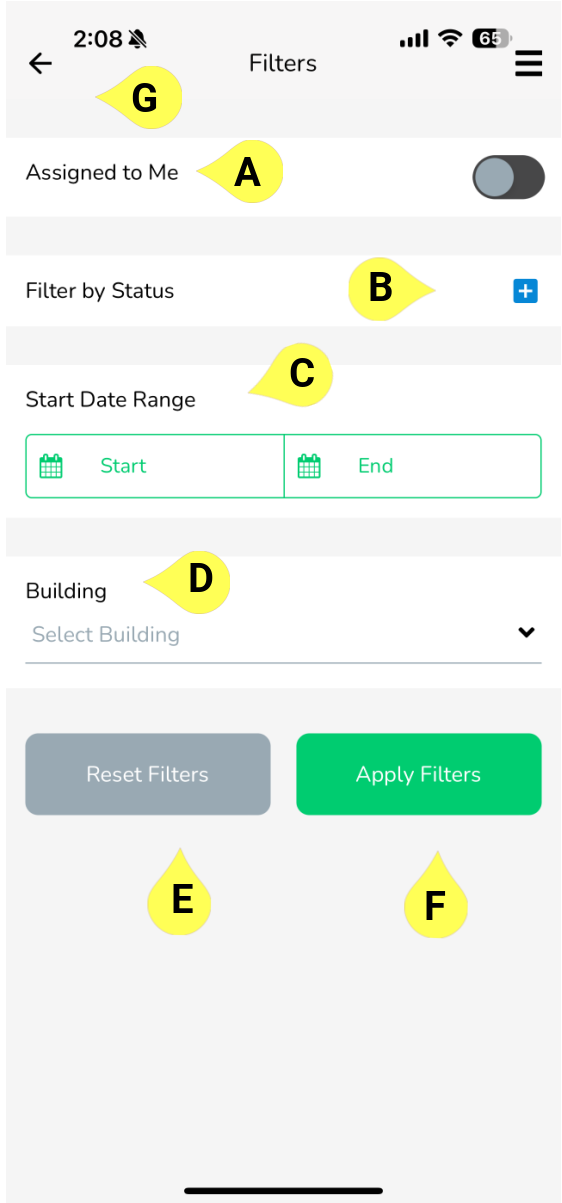
A - Assigned to Me Turn this filter on to only show jobs that have been assigned to you. This is turned on by default when you start the App.
B - Filter by Status Use this to filter your list of jobs down to only a certain status or statuses.
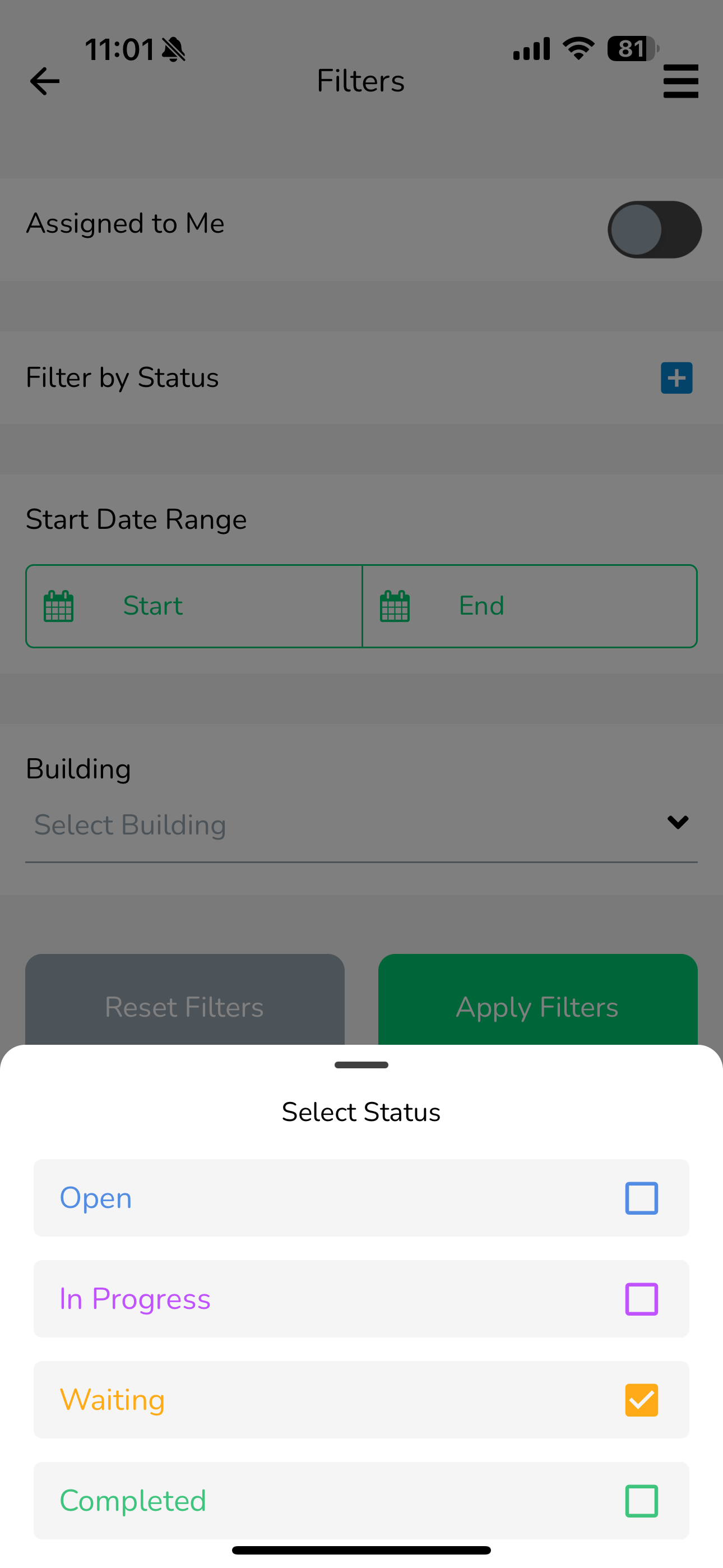 Select one or more statuses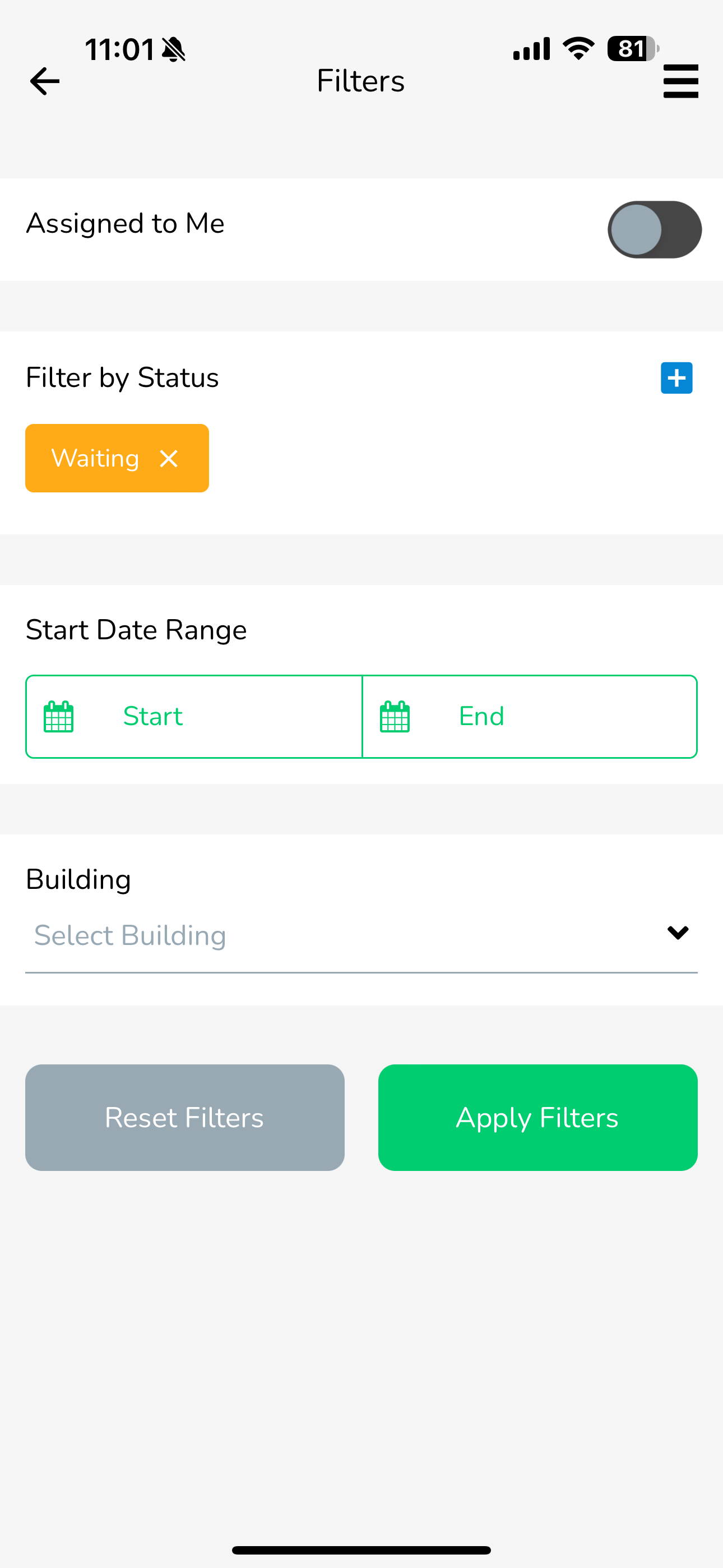
Tap the small 'x' beside the status name to remove the status.
C - Date Range Use this date range filter to view Visits during a specific time period
D - Building Use this dropdown to select a specific building to view Visits in.
E - Reset Filters Use this button to reset the filters back to their default values.
F - Apply Filters Tap this to apply your filters. You'll be taken back to the All Work screen with your results filtered according to your settings.
G - Back/Cancel Use the back arrow to cancel and go back to the All Work screen.