Service History
Last updated
How to Use the Service History Page in the Admin Portal
The Service History page in the Admin Portal provides a comprehensive overview of all service activities across your organization, as well as any shared organizations. This guide will help you navigate and utilize the features on this page effectively.
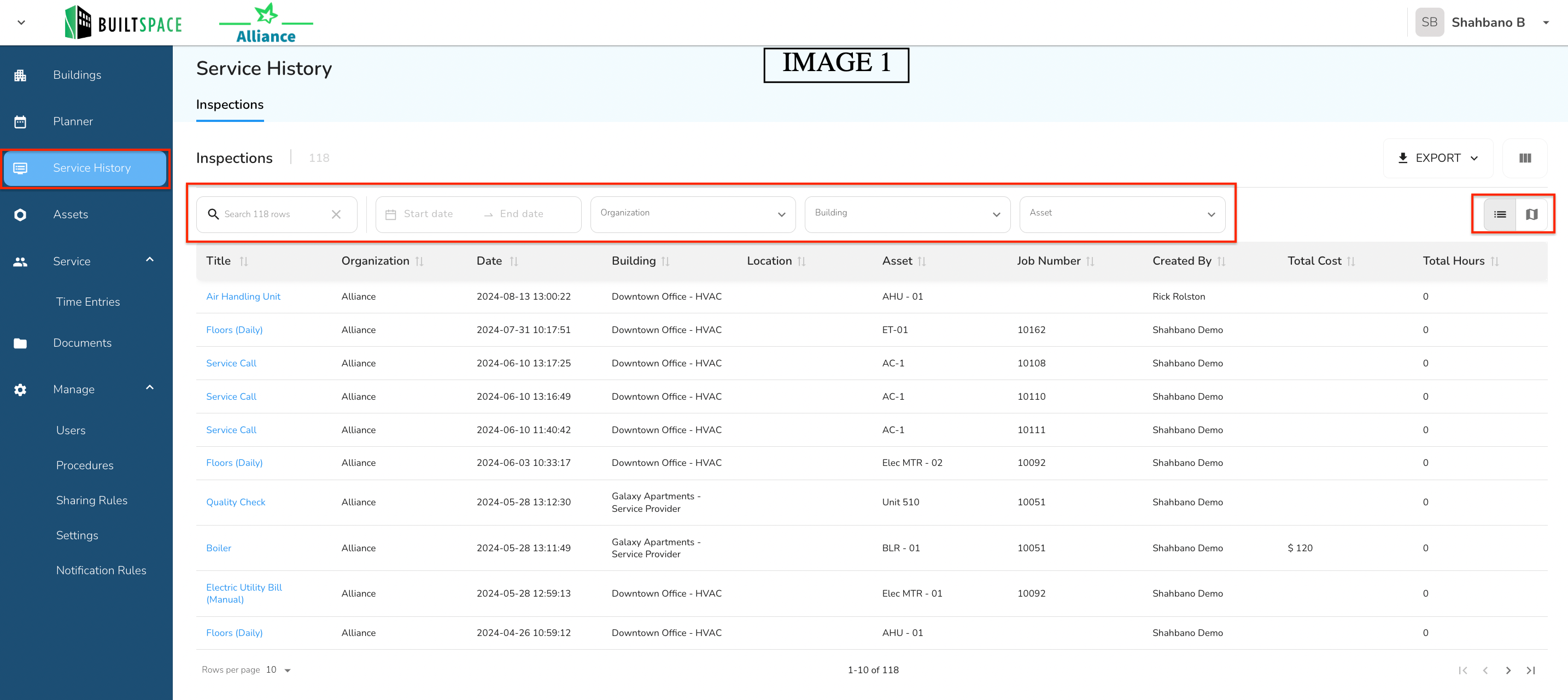
1. Viewing Service History Data
The Service History page displays detailed records of service activities, including maintenance, repairs, and inspections, across your entire organization. This data encompasses:
- Your Organization: All service history related to your assets, buildings, and operations.
- Shared Organizations: Service history from organizations that have shared their data with you.
[!NOTE]
Note:Some fields may not be visible when you are viewing shared data. The organization that created the data can choose to share only very-basic information or the full details. For example, the questions, photos, technician name, and geolocation may not be visible depending on the level of sharing.
This centralized view allows you to track and manage service activities, ensuring that you have full visibility over your organization’s operations as well as those of any partners or affiliates.
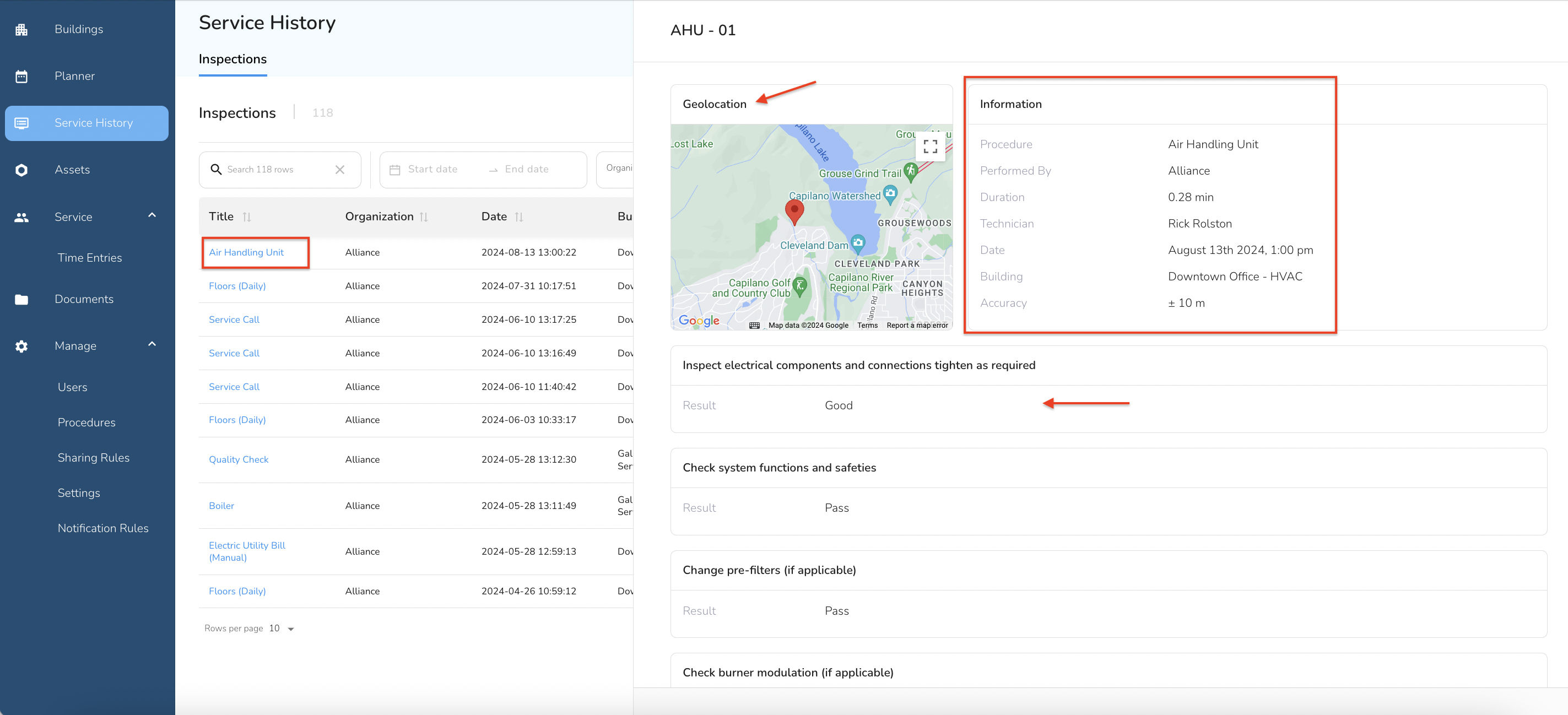
To view the details of a specific service history record, simply click on its Title. This action will open a slide-out panel that contains comprehensive information about that particular service. Within this panel, you'll find key details such as the procedure name, technician's name, duration of the service, any questions and answers associated with the service, and the geolocation where the service was performed.
[!NOTE]
Note:Geolocation is only captured if the technician has location services enabled on their device.
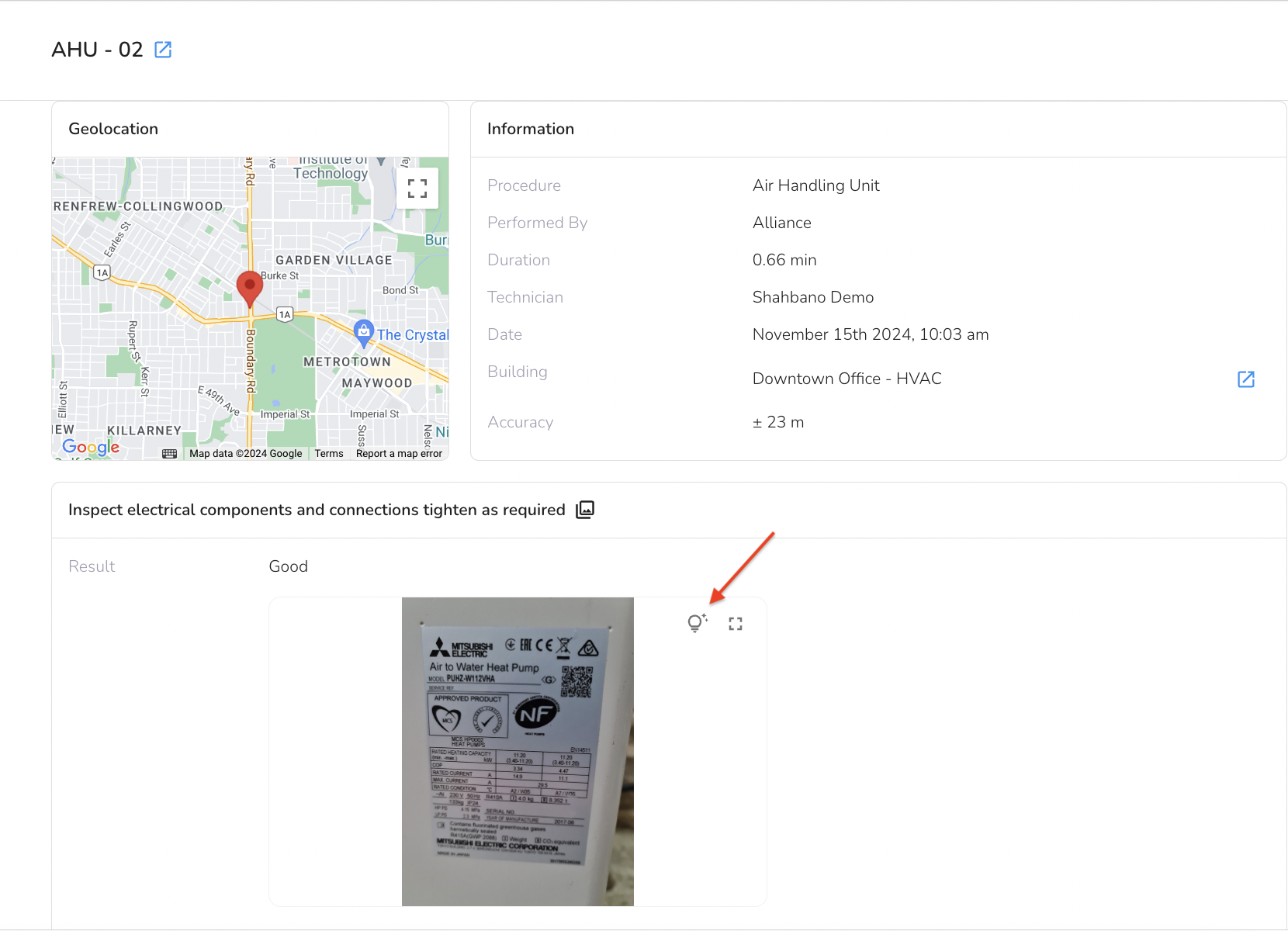
AI Photo Description Feature
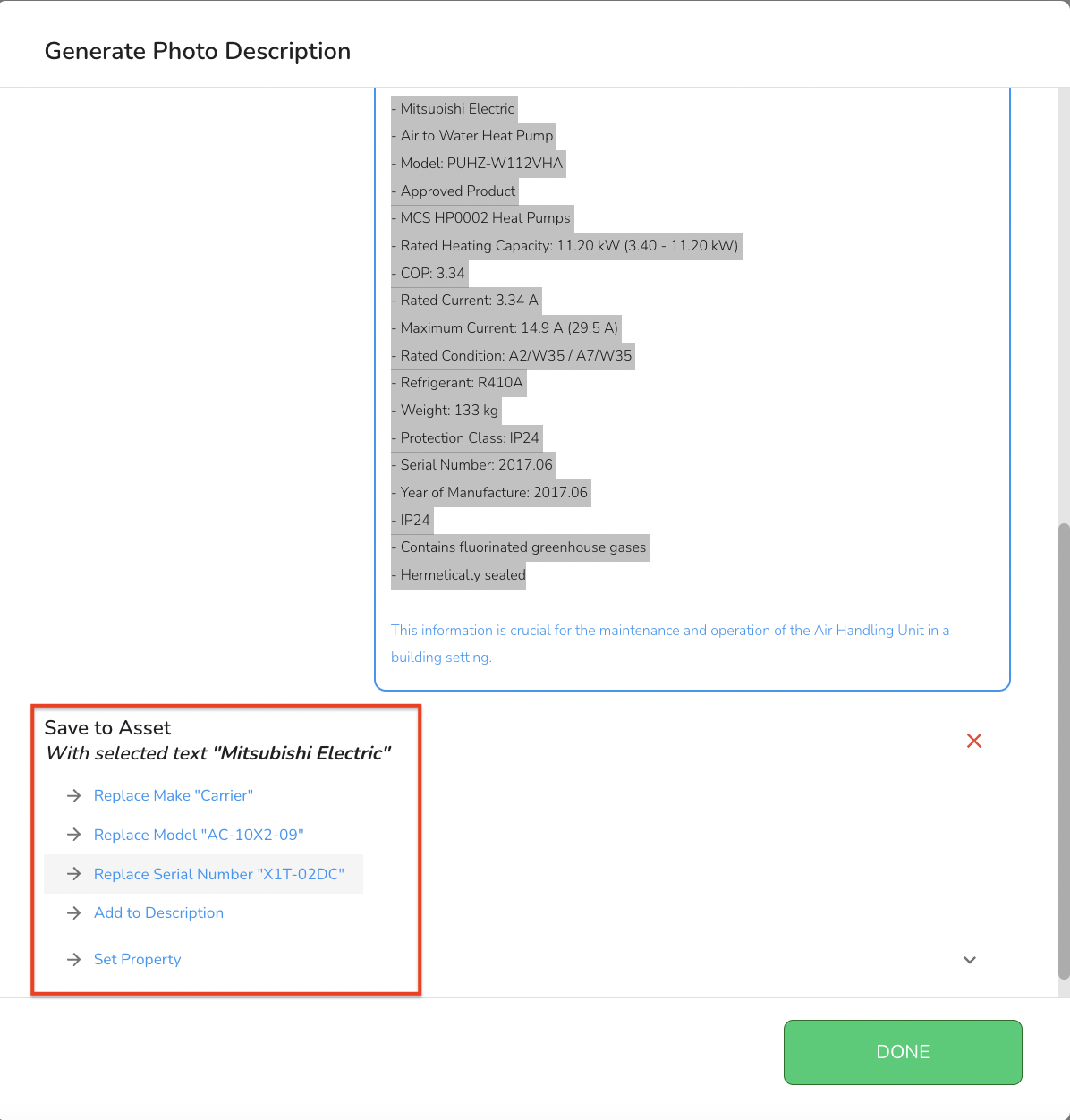
Users can now select specific text from AI-generated photo descriptions to save directly into asset records. This feature helps capture detailed asset information, such as specifications from equipment nameplates, making records more complete and searchable. For example, during onboarding or maintenance, photos of equipment can be analyzed to update records with critical details like model numbers, serial numbers, or installation dates. While this feature is off by default, you can enable it for your organization by contacting the support team at support@builtspace.com.
Once enabled, follow these steps to view this feature:
- Open the Service History record you want to view and go to the photo that you want to generate the description for. Click on the “light bulb” icon.
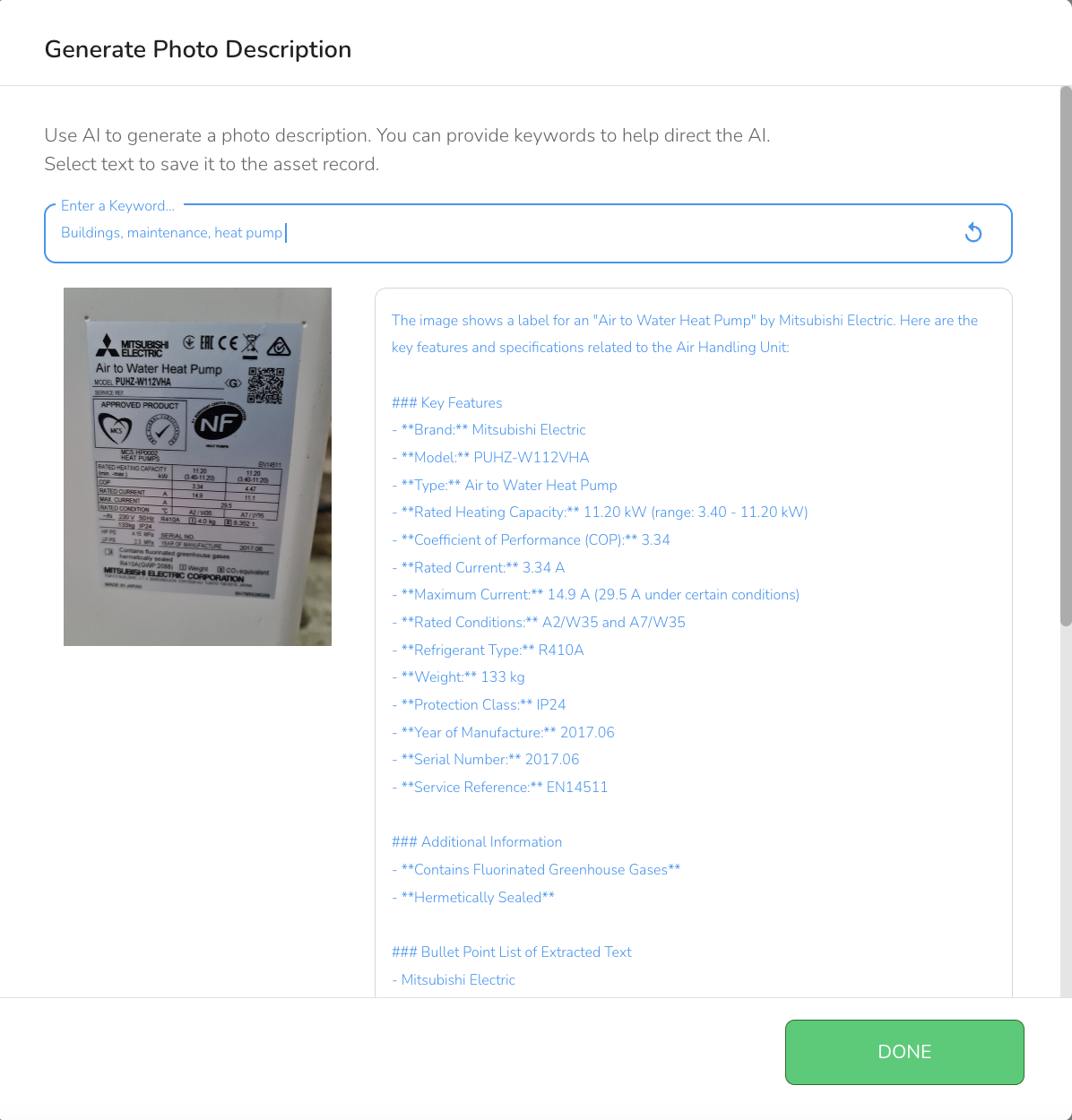
- The Generate Photo Description pop-up comes up.
- You can add or edit keywords and click the refresh icon to update the description that is generated.
- Clicking “Done” will close the pop-up.
- If you select some or all of the text you will have the option to:
- Replace the Make
- Replace the Serial Number
- Replace the Model
- Add to Description
- Set Property
This slide-out feature ensures that you have all the relevant information at your fingertips, making it easy to review and analyze each service record in detail.
2. Filtering Service History
To refine the data displayed on the Service History page, you can use several filter options:
- Date: Filter by specific date ranges to view service activities that occurred within a certain time frame.
- Organization: Choose to display data from either your organization, a shared organization, or both.
- Building: Focus on a particular building to see service history related only to that location.
- Asset: Narrow down the history to specific assets, making it easier to track the service history of individual items or equipment.
These filters help you quickly find the information you need, allowing you to focus on specific aspects of your service operations.
3. Using the Filterable Map View
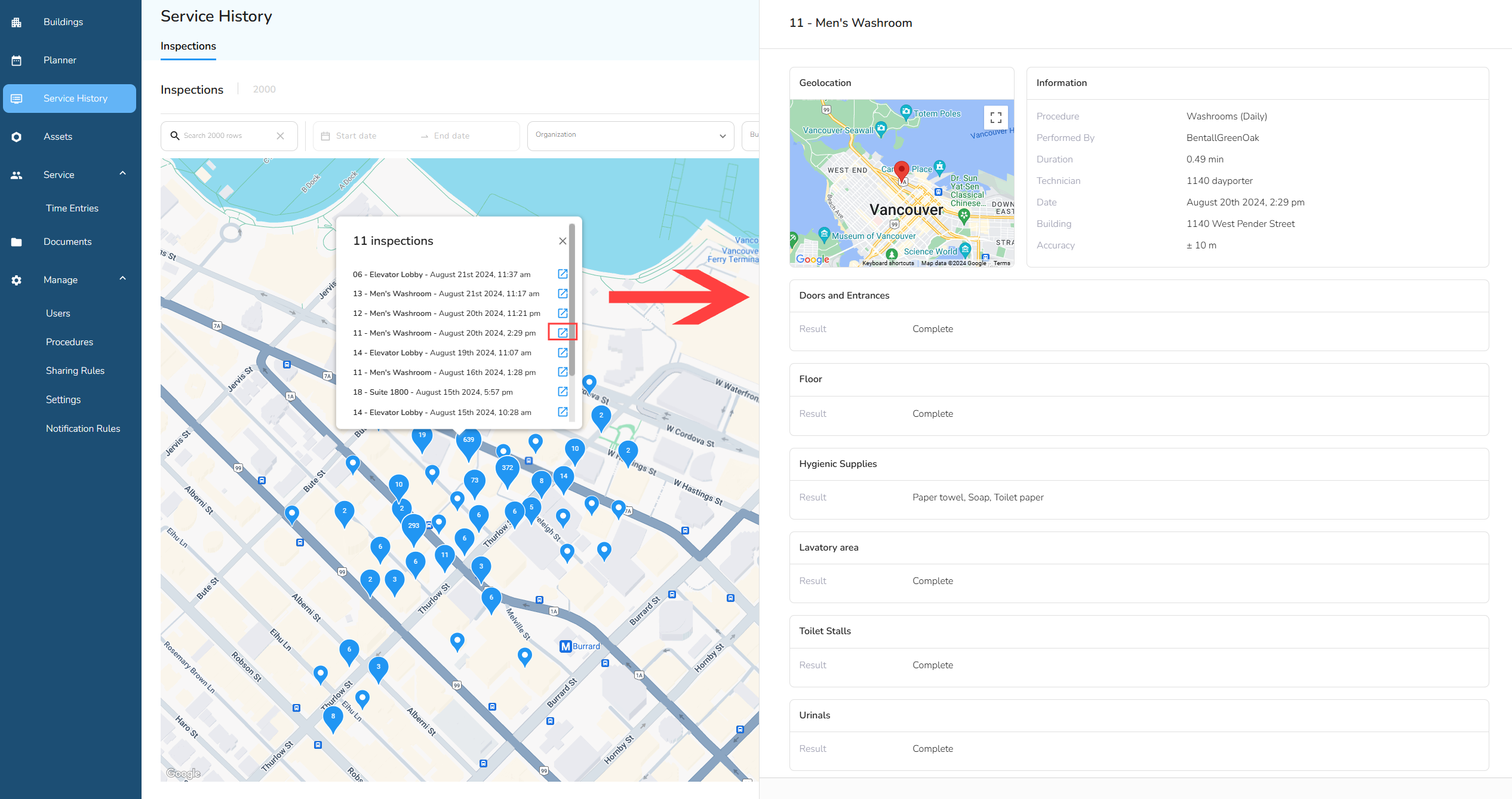
The Service History page also includes a Map View, which provides a geographical representation of service activities. Click the map icon on the right hand side of the page to see the Map View (see Image 1 at the top for reference).
- Interactive Map: Visualize where services have been performed across various locations. This view is especially useful for organizations with multiple sites or geographically dispersed assets.
- Filterable: Apply the same filters (Date, Organization, Building, Asset) to the map view to focus on specific areas or types of service activities.
- Service History Data:
- Click on the blue icon next to the Inspection title. This action will open a slide-out panel that contains comprehensive information about that particular service.
- Within this panel, you'll find key details such as the procedure name, technician's name, duration of the service, any questions and answers associated with the service, and the geolocation where the service was performed.
The map view offers an intuitive way to understand the spatial distribution of service activities, helping you identify patterns, trends, or areas that may require additional attention.
By utilizing the features on the Service History page, you can effectively monitor, manage, and analyze service activities within your organization, ensuring that your operations run smoothly and efficiently.