The All Work screen in the Admin Portal lets you view, manage, and edit all Visits and Issues across your organization. From inline edits and status updates to batch actions and real-time technician dispatching, this page is your central workspace for field operations.
Accessing the All Work Screen
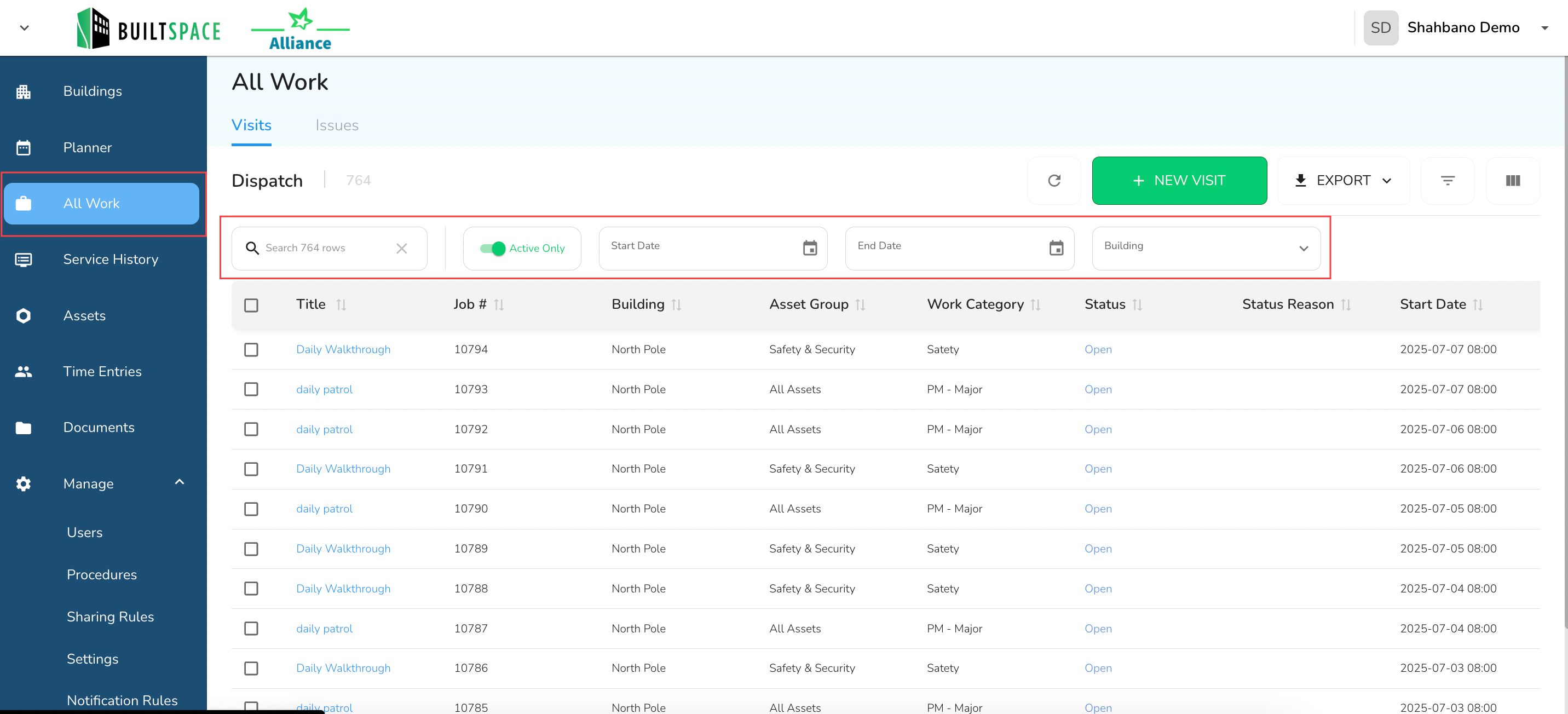
From the left navigation menu, click on All Work. You will see two tabs at the top: Visits and Issues. Use these tabs to view, filter, and update task-related items across your organization.
Use the query filters at the top of the page to limit your results by date range, building, or active status.
[!NOTE] Note:
The All Work screen shows a maximum of 1,000 rows at a time
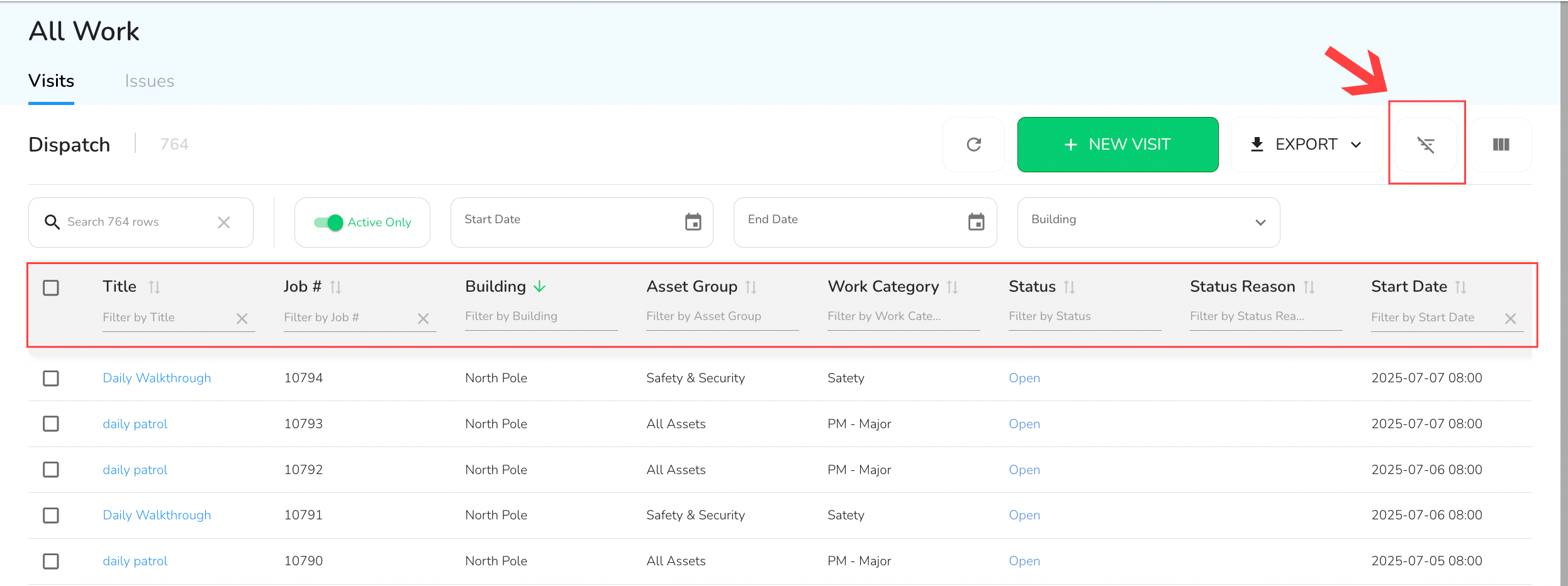
To filter by individual columns, click on the filter icon in the top-right. This will display filter options in every column header.
Editing and Updating Rows
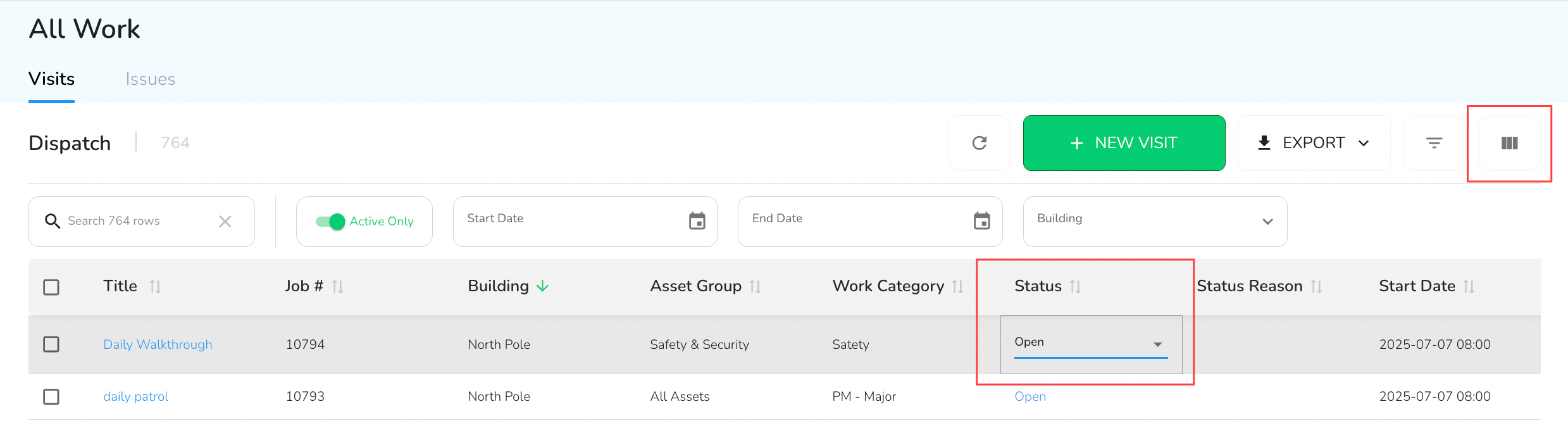
You can edit values directly in the table. Fields with a border around them are editable.
Click into a cell, enter your changes.
Click outside the field to save automatically.
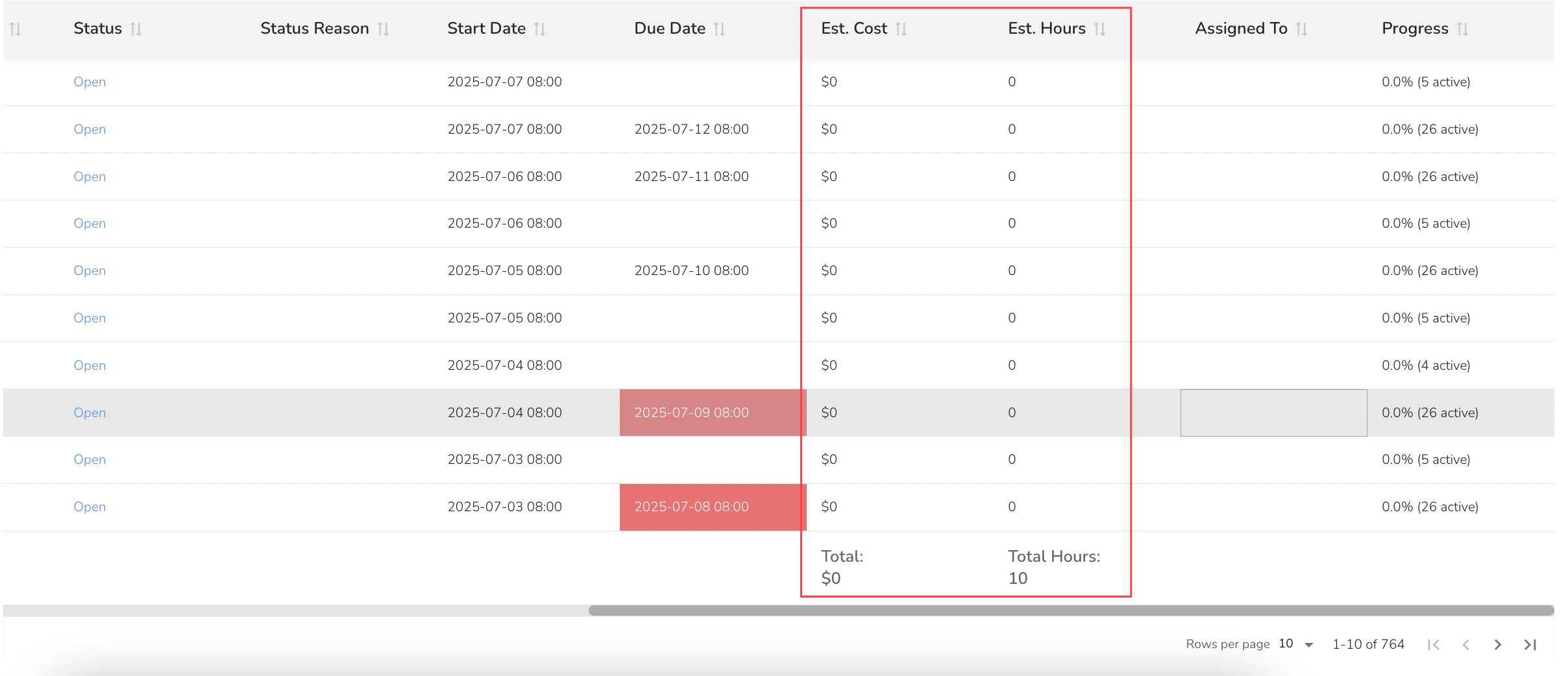
The Estimated Cost and Estimated Hours columns are hidden by default.
[!NOTE] Note:
Click the Columns button above the table to show/hide columns.
When shown, totals for visible rows will appear in the footer.
Batch Updating Multiple Rows
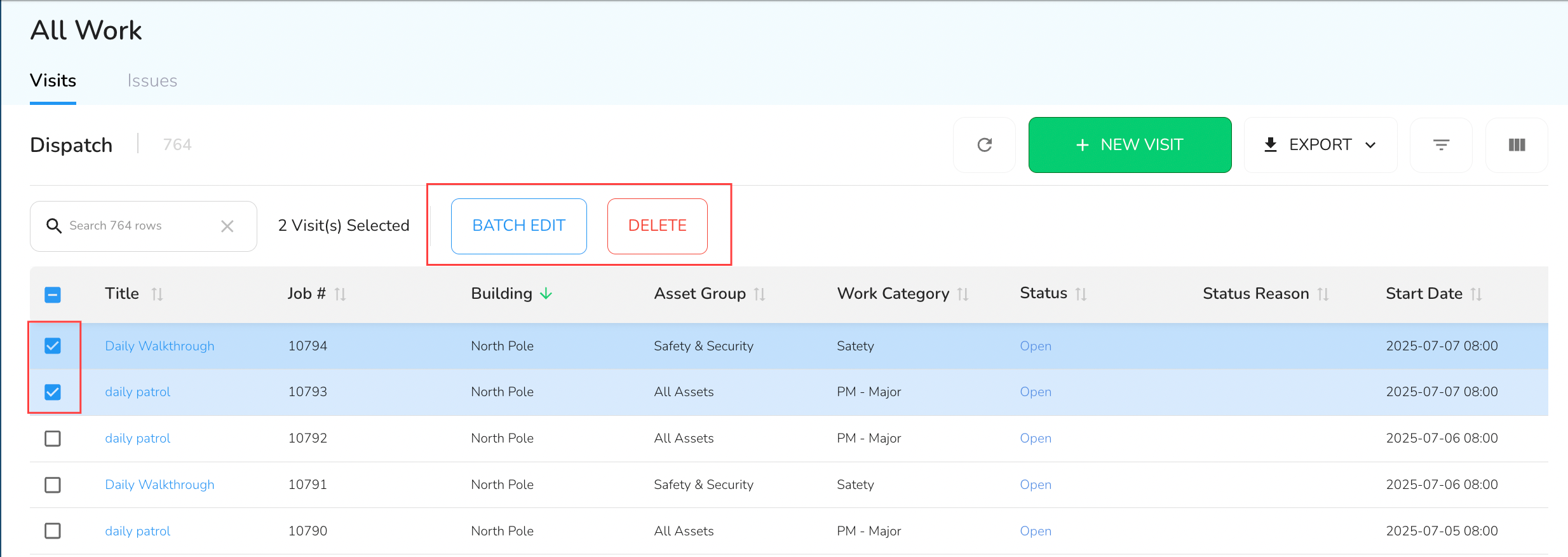
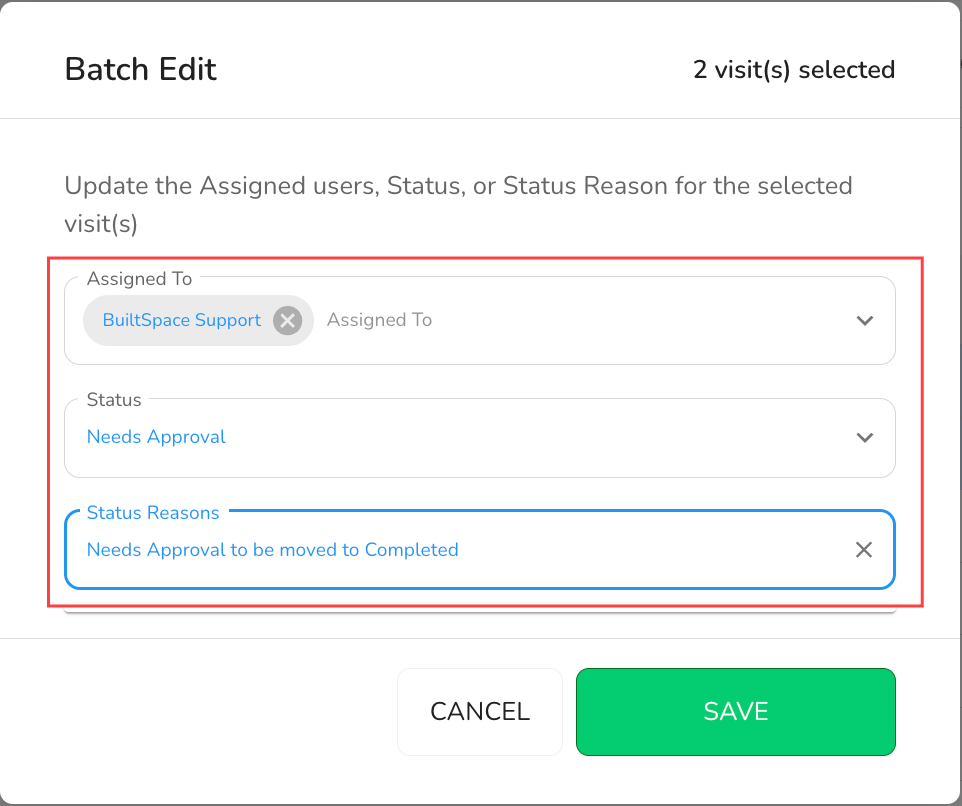
Select one or more rows using the checkboxes on the left side of the table. When a row is selected, a toolbar appears above the table, with two options - Batch Edit and Delete.
Use this toolbar to batch edit fields like Status, Status Reason, and Assigned To (for Visits only).
Colour Codes on the Table
[!NOTE] Colour Codes
To help track urgency and progress, the table uses colour indicators:
Status values follow the same colour-coding as the Service Twin® app.
Due Date turns RED if the date is past due and ORANGE if the item was completed after the due date.
Priority on the Issues tab appears in RED for high-priority items.
The All Work screen consolidates all job-related activity into a unified workspace. With filters, real-time task sync, and inline editing, this page enables dispatchers and admins to efficiently manage day-to-day field operations across jobs, visits, and issues.