Customer Tab
Last updated
The Customer tab lets you set up the billing portion of the Schedule you're creating. After selecting a Customer, you also have the chance of selecting the appropriate Job Template. Each field is explained in more detail below.
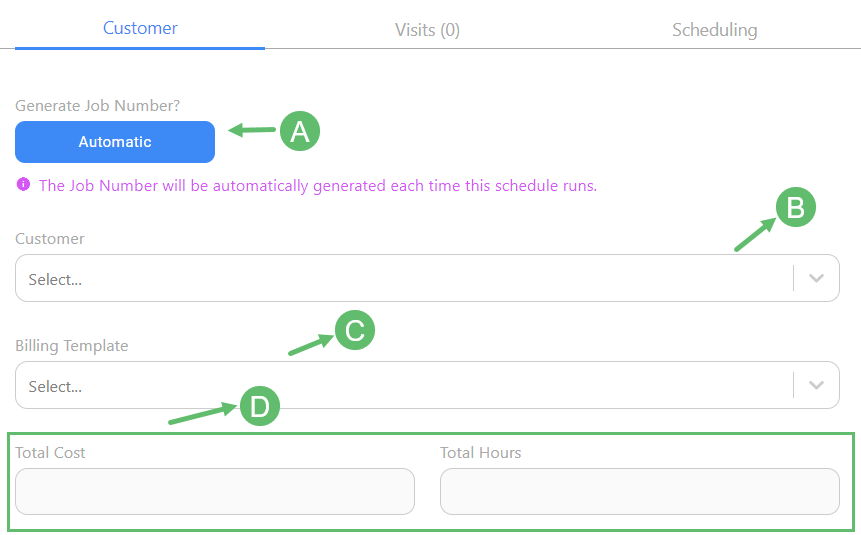
A - Generate Job Number
By default this field is set to 'Automatic' and cannot be changed. This indicates that during every instance where this Schedule creates a Job or a Visit (or both), the Job Number will be automatically generated in sequential numeric order.
B - Customer
Select the Customer from this drop-down. The Customer will be the organization to whom you will send the bill to. If the Customer doesn't exist, go to the Customer page (Service tab > Customers) to create a new one.
C - Job Template
Select the Job Template you want to use for this Schedule. This field is filtered down to the Customer you selected in the drop-down above. The Job Template will set out the specific charges, materials, taxes and terms & conditions that are to be used when billing the customer at the end of each Job that comes from this Schedule.
Note!You can add more charges to the Job after it has been created.
D - Total Cost & Total Hours
These fields are automatically populated based on the Job Template you selected in the drop-down above. They indicate the contracted Total Cost and estimated Total Hours that are going to be charged for this Job.