Notification Rules for Documents
Last updated
Creating a new rule for Documents
This article will explain how to create a rule for when a change is made to a Document.
NoteRight now, you are only able to create a rule for when a Document is created, deleted, or any changes are made.
Here are the steps needed to set up a rule:
- Make sure you are on the Document tab in the top navigation, and then click on + Create Notification Rule in the top-right.

- You can specify an Alert Title to give clear context to the email recipient about the alert's purpose.
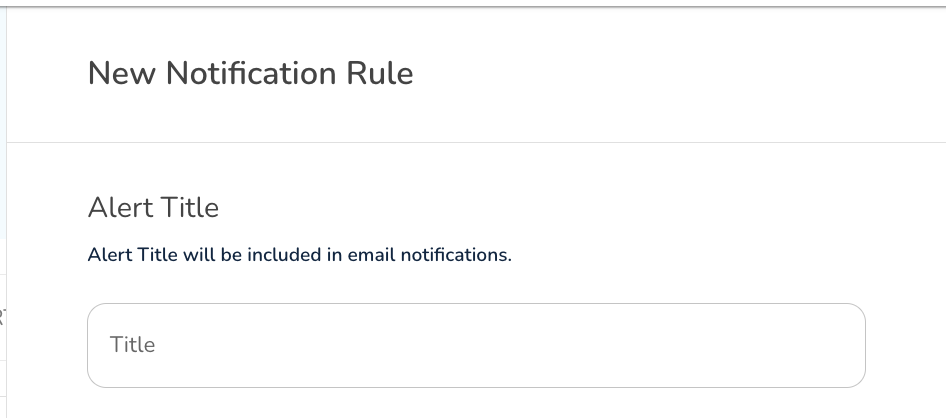
- Your object is automatically set to Document, and you just simply need to select an action from the second dropdown.
- In the next section, you have the ability to set some conditions for when this notification rule should run. By default, it will simply run on only the action set in the field above. For example, you can make it so that this rule only runs when
- a Document gets created, gets deleted,
- any changes are made by a specific User (or not by a specific User),
- any changes are made by a specific User Role (or not by a specific User Role),
- when changes are made to a File Name or File Path.
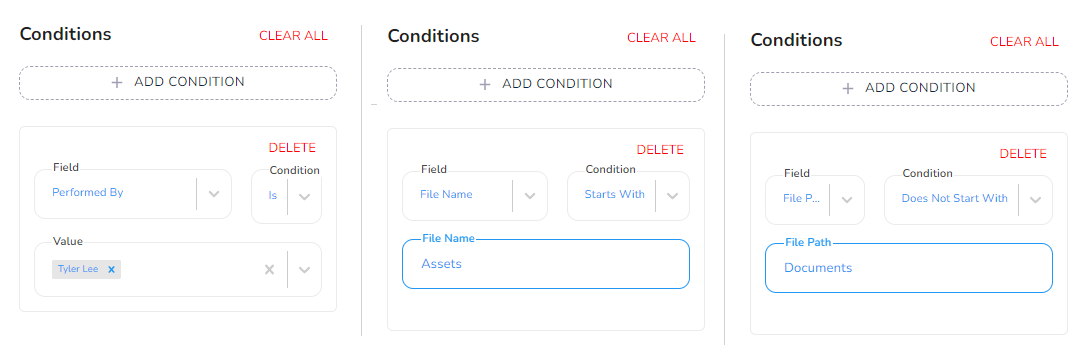
In the screenshot below, you can see an example of a Performed By, a Performed By Role, File Name, and File Path condition. You can of course use all four conditions at the same time. Also, please note that you can use 'is' or 'is not' when setting these conditions.
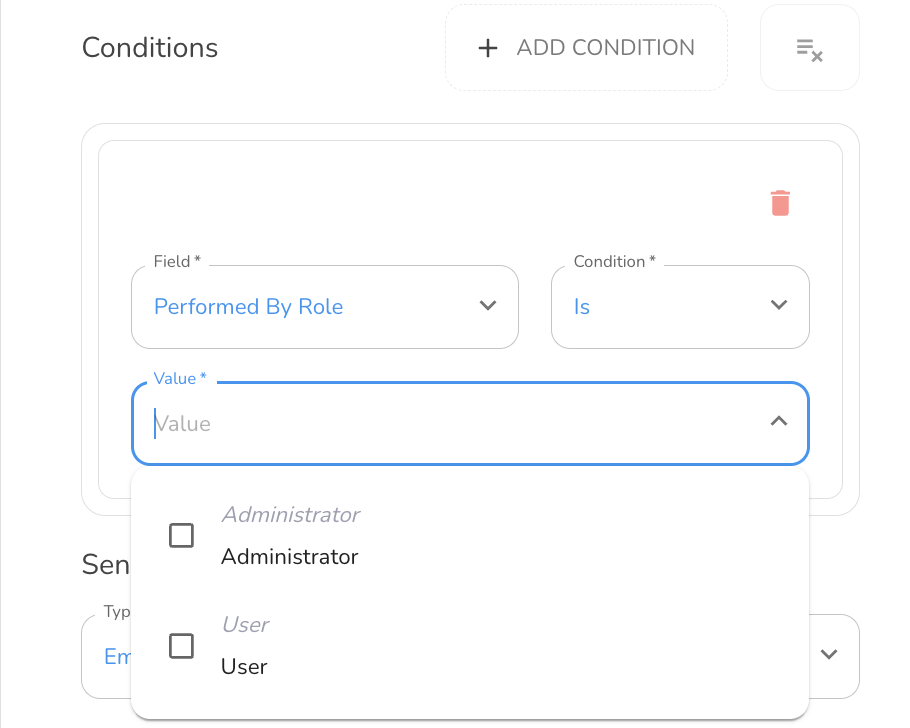
NoteTo use Performed by Role, the user must have a role assigned in the Admin Portal.
- As a last (and maybe most important) step, we need to decide who gets the notification. There are two (2) fields here:
Type - select the type of notification that should be sent.
NoteThe only 'Type' option at the moment is 'Email'.
Recipient - choose the user(s) who should be notified.
NoteYou can only choose from the list of users inside your organization.
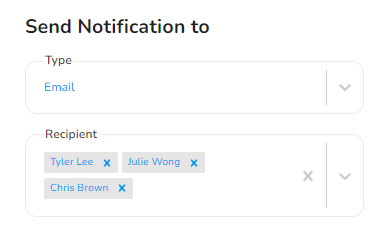
Here is an example. We are telling the system to send a notification by email to the users Tyler Lee, Julie Wong, and Chris Brown.
- Click on Create when done.