This article explains what are Asset Properties and how to create a rule for when a change is made to Asset Properties.
What are Asset Properties
Asset Properties allow you to extend BuiltSpace Assets to include fields that are important to your organization. This can be helpful for:
Completing Health & Safety, Security, and other Audits.
Digital Re-commissioning. Pre-load equipment data (new construction and retrofits) for field verification by technicians using the BuiltSpace Service Twin® App.
Integrations with BAS/IoT sensors. Easily connect sensor data to maintenance Checklists by connecting them to your Asset Properties. Technicians can now complete remote assessments, and will always see the latest readings.
Procurement tracking.
Creating a new rule for Asset Properties
Note:
Currently, you can only create a rule for when an Asset Property is edited.
Steps to Set Up a Rule:
Click the + Create Notification Rule button to set notification rules for Asset Properties.
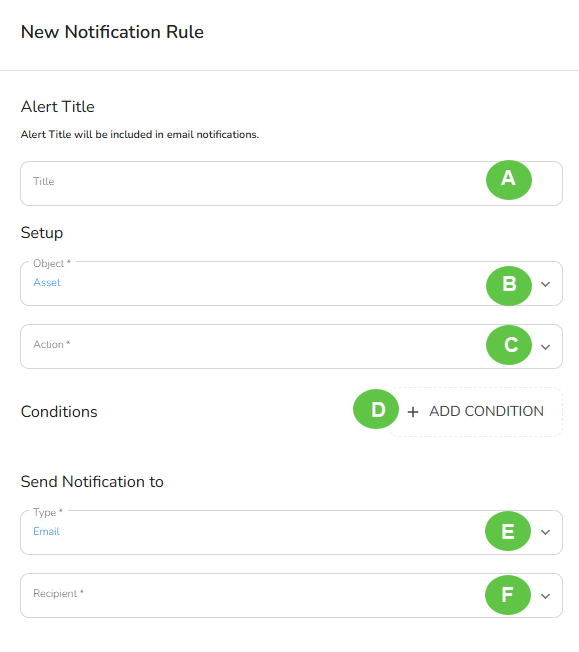
Complete the slide-out form to configure the Notification Rules.
Notification Rules Fields:
A - Alert Title
Specify an alert title to provide the email recipient with clear context about the alert's purpose.
B - Object
Refers to the category or classification for which you are creating the rule.
C - Action
The selected event or task that, when performed, will trigger a notification.
D - Conditions
[optional]
By default, notifications are triggered by the specified action. However, you can add additional criteria to refine when a notification is sent.
E - Type
Specifies the notification delivery method. Currently, notifications are only sent via email.
F - Recipient
The person who will receive a notification when the selected action or condition is met. The recipient must be a user within your organization.
[!CAUTION] Note:
If you select the Asset Property tab, it will automatically be set as the ‘Object’ you want to configure. This can be found at the top right of the screen after clicking the ‘Notification Rule’ tab.
Setting Conditions
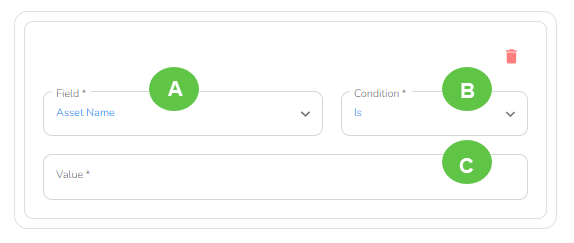
When you click the +ADD CONDITIONS tab, a slide-out panel will appear, allowing you to define specific conditions. You'll need to specify the Field, Condition, and Value to tailor your criteria.
A - Available Fields for Conditions:
Buildings
Performed By
Performed By Role
Property Group
Property Name
Property Value
Asset ID
Asset Name
B - Available Conditions:
For most fields, the available conditions are:
"is"
"is not"
However, additional options are available for Property Value and Asset Name.
For Property Value, you can also set:
Greater Than
Less Than
Greater Than or Equal To
Less Than or Equal To
In Range
Not In Range
For Asset Name, you can also set:
Starts With
Does Not Start With
Contains
Does Not Contain
Is Like
C - Value
Defines the specific parameters for your notification.
[!NOTE] Note
To use the ‘Performed by Role’ field, the user must have a role assigned in the Admin Portal.
Examples of Condition Usage:
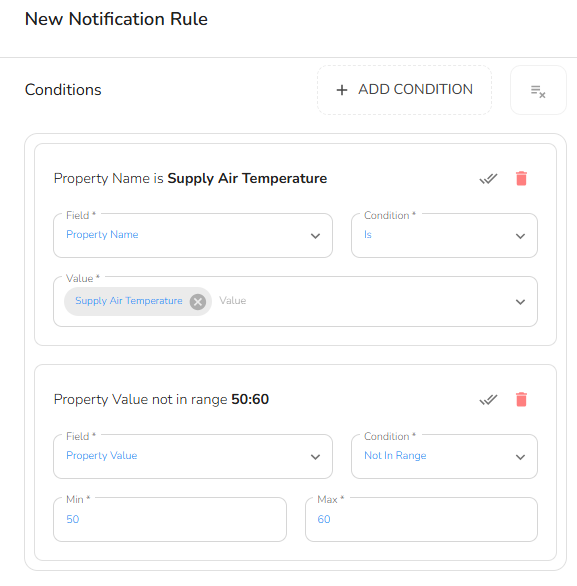
A HVAC daily inspection report ensures that the supply air temperature from the vents remains within the optimal range of 55°F – 65°F during cooling mode. If the temperature falls outside this range, the manager should be notified immediately.
To create these conditions:
Set a condition for the Property Name (e.g., Supply Air Temperature).
Set a condition for Property Value (e.g., Less Than 50°F or Greater Than 60°F).
The screenshots below outline what the configuration would look like for this notification.