Materials, Tools and Suppliers
Last updated
This article will teach you how to manage the Material Types, Tools and Suppliers in the Admin Portal Settings Tab.
Creating New Material Types
"Material Type" is a button in the Service Twin App (R) when you use "Add Materials” on a procedure with that feature enabled.
By default, your Organization comes with the following types but these can be edited, or new ones created: PO, Tools, Truck Stock, 3rd Party, or Other.
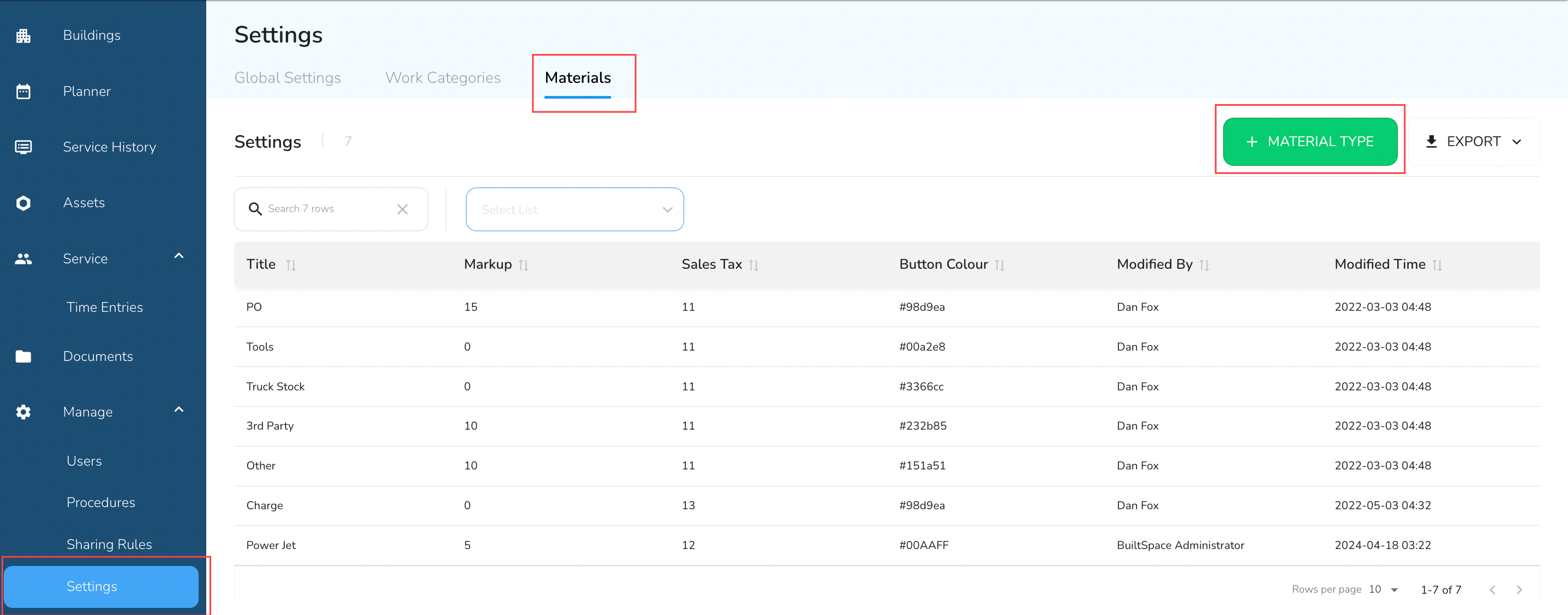
- Navigate to the Materials tab: Go to the Settings Tab on the Left Navigation Menu and click on Materials. To add new material, click on the + Material Type button.
- Fill out the form presented to you and click on the green checkmark when done. Red asterisks (*) denote required fields. Each field is explained in more detail below.
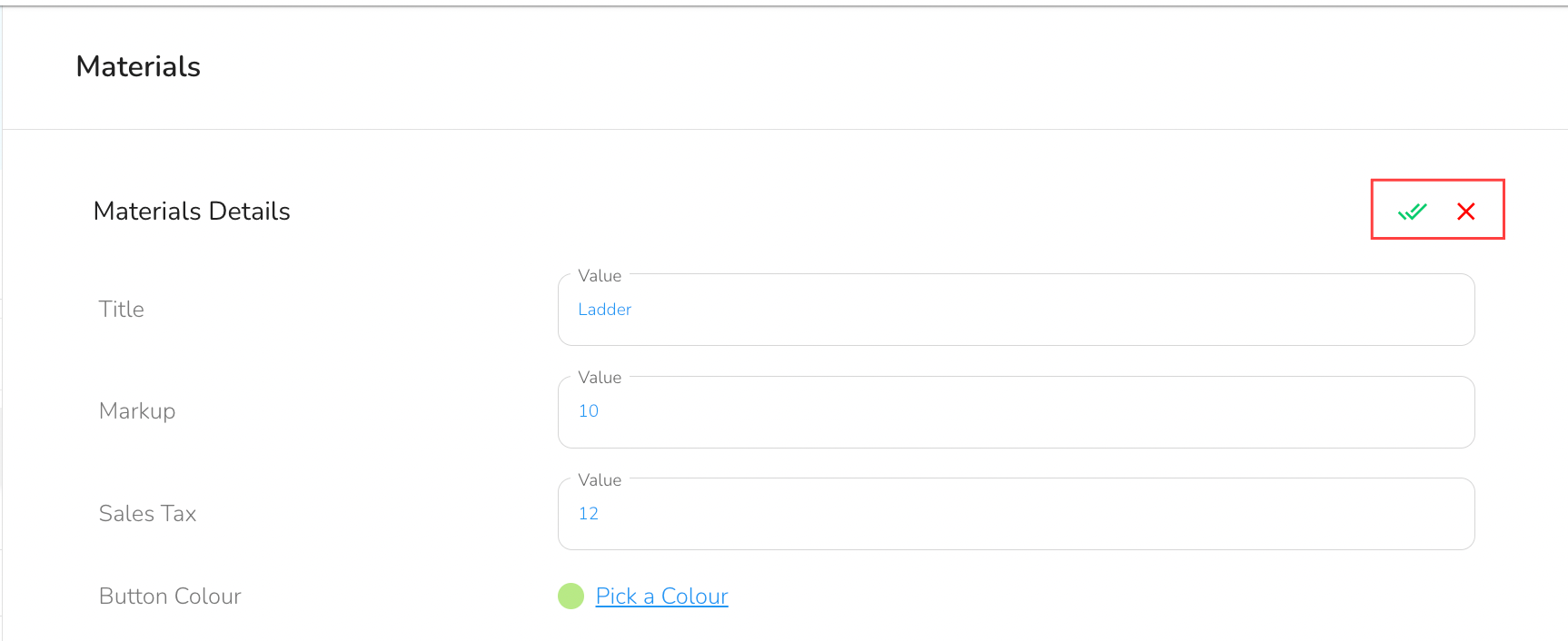
A - Title
Enter the Title for the Material Types.
B - Markup
Enter the Markup percentage (e.g. '20').
For example, a technical bought a motor for $100. The markup is 20%. The invoice will show $120 to the client.
C - Sales Tax
Enter the Sales Tax percentage (e.g. 5%).
For example, the sales tax will be calculated on the final invoice amount. It means 5% will be calculated on $120 which is $6. It will be shown separately as a line item.
D - Button Colour
Button Colour will allow you to set the button colour. Pick a medium-dark colour from the colour picker as that will be more prominently visible.
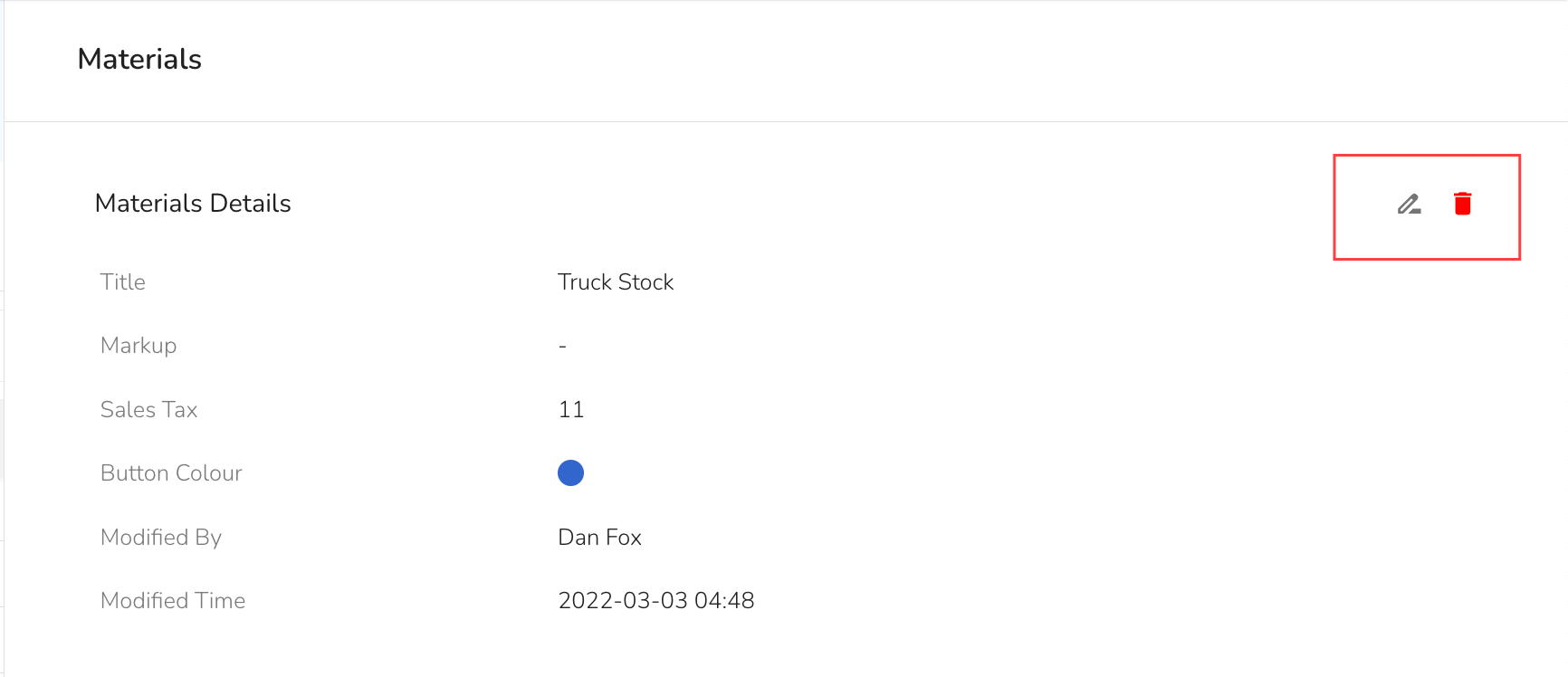
To delete a Material Type, click on the title of the item you wish to delete. In the slide-out, you can click the red trash sign to delete.
Creating New Tools
"Tools" is an option in the Service Twin App (R) when you use "Add Materials” button on a procedure with that feature enabled.
- Navigate to the Tools page: To view the Tools page, click on the Select List dropdown on the Materials tab and select Tools. To add a new Tool, click on the + Tool button.
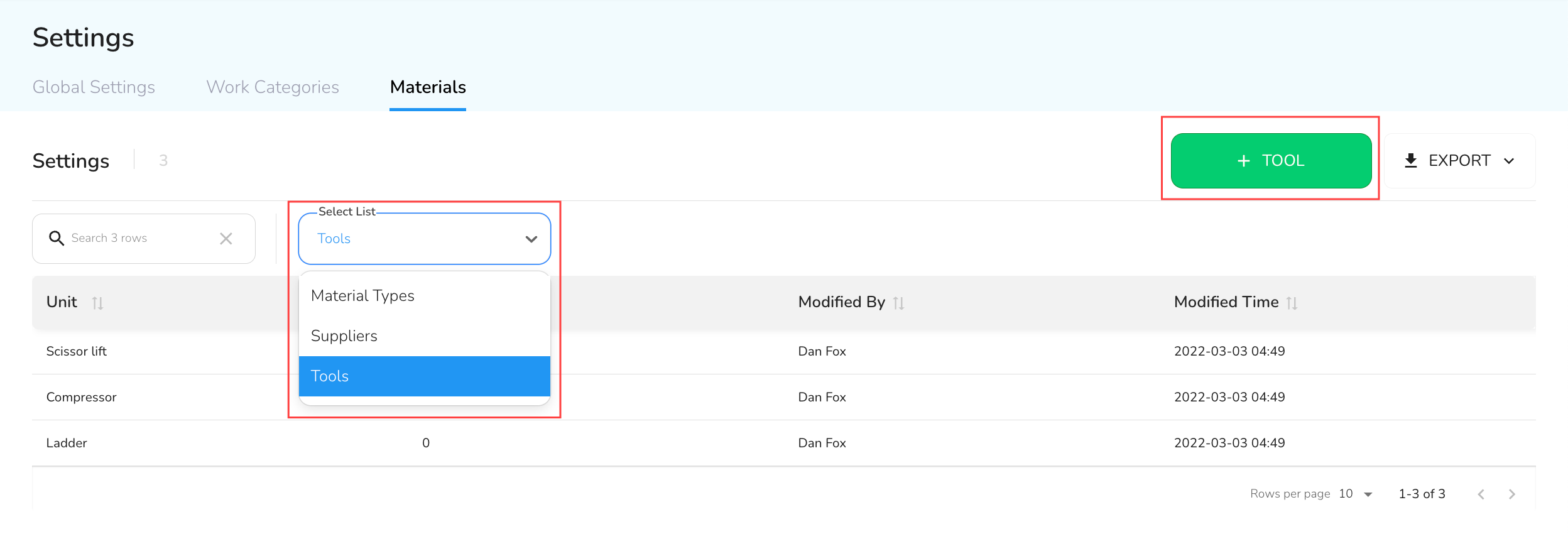
- Fill out the form presented to you and click on the green checkmark when done. Each field is explained in more detail below.
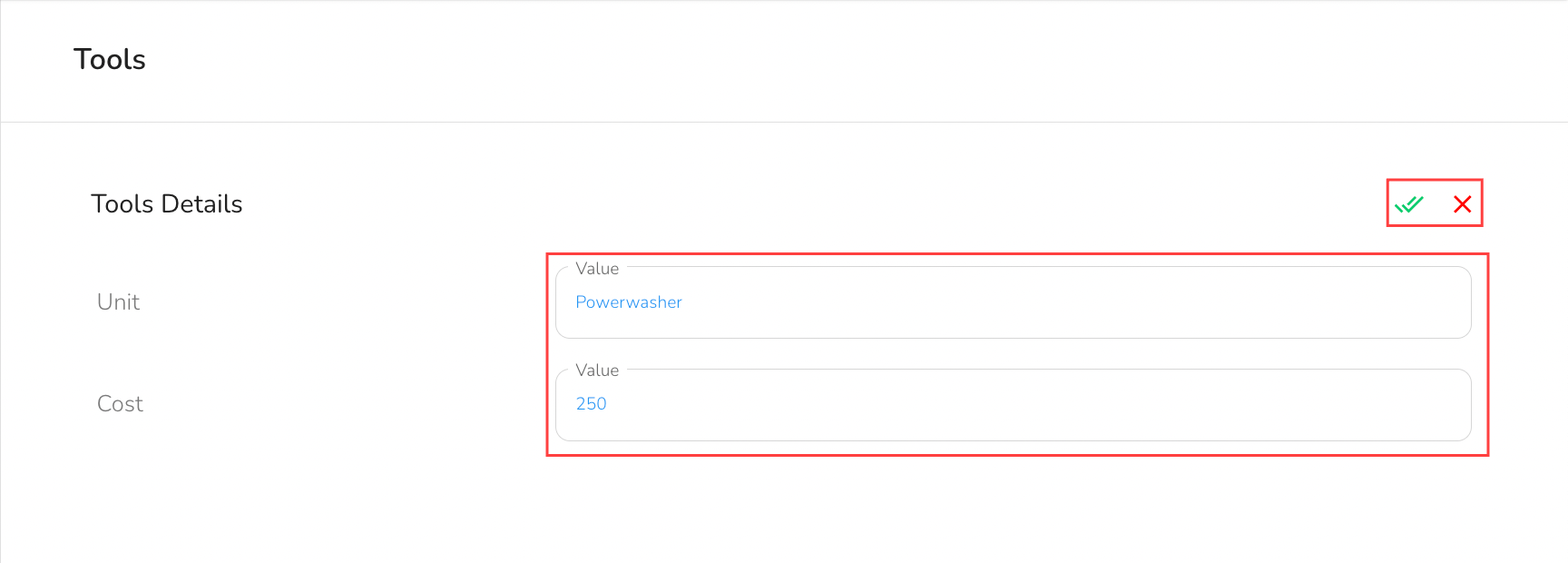
A - Unit
Enter the title for the Tool.
B - Value
Enter the cost for the Tool to be shown on the invoice. For Eg. if it is $250, enter 250.
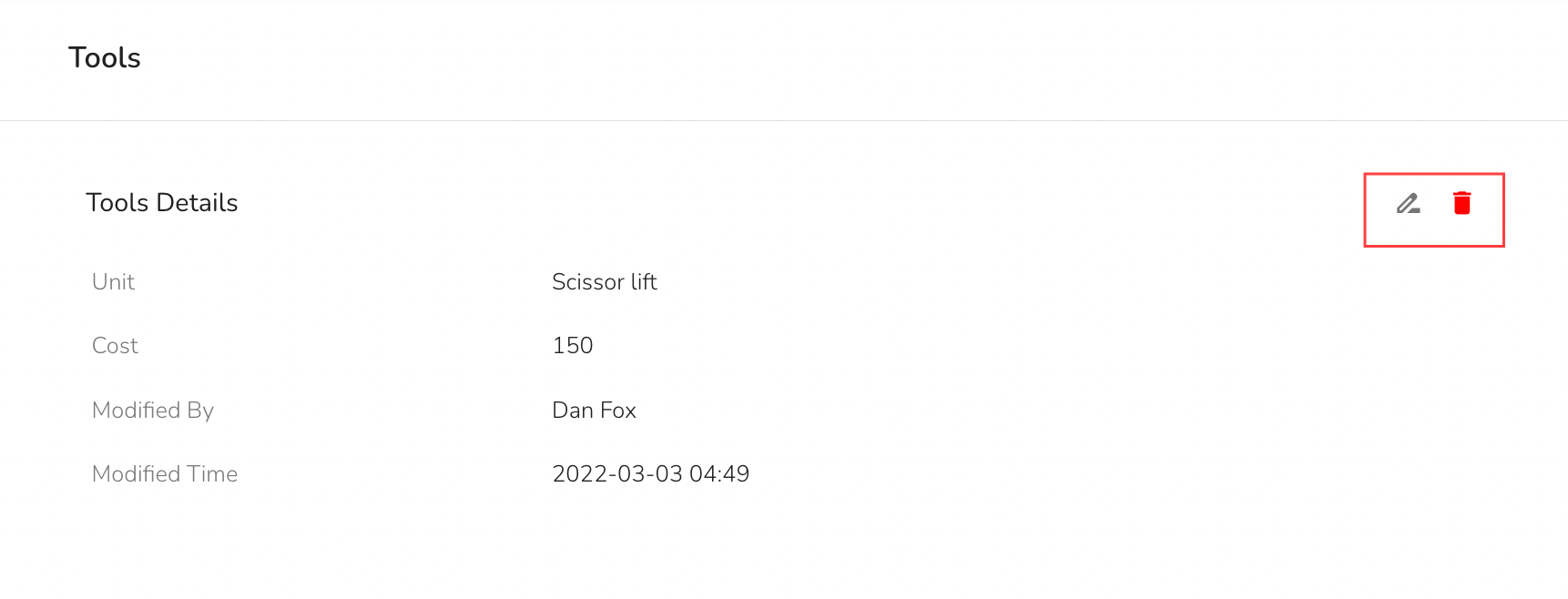
To delete a Tool, click on the title of the item you wish to delete. In the slide-out, you can click the red trash sign to delete.
Creating New Supplier
"Supplier" is an option in the Service Twin App (R) when you use "Add Materials” button on a procedure with that feature enabled.
- Navigate to the Supplier page: To view the Supplier page, click on the Select List dropdown on the Materials tab and select Supplier. To add a new Supplier, click on the + Supplier button.
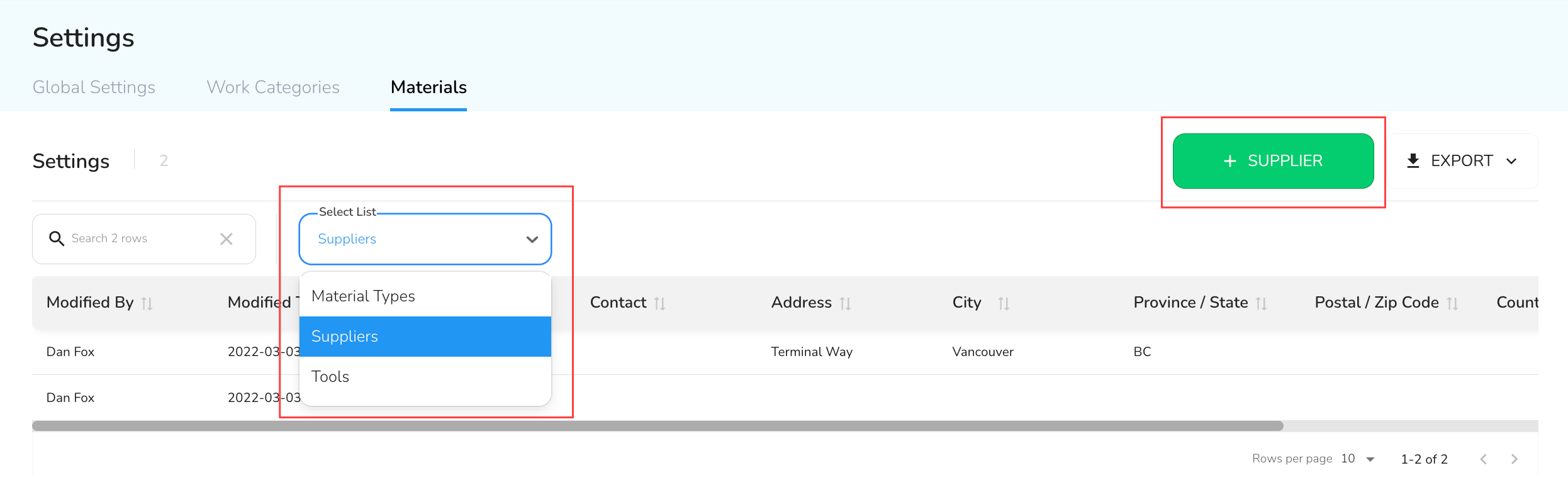
- Fill out the form presented to you and fill out the Supplier details. Click on the green checkmark when done.
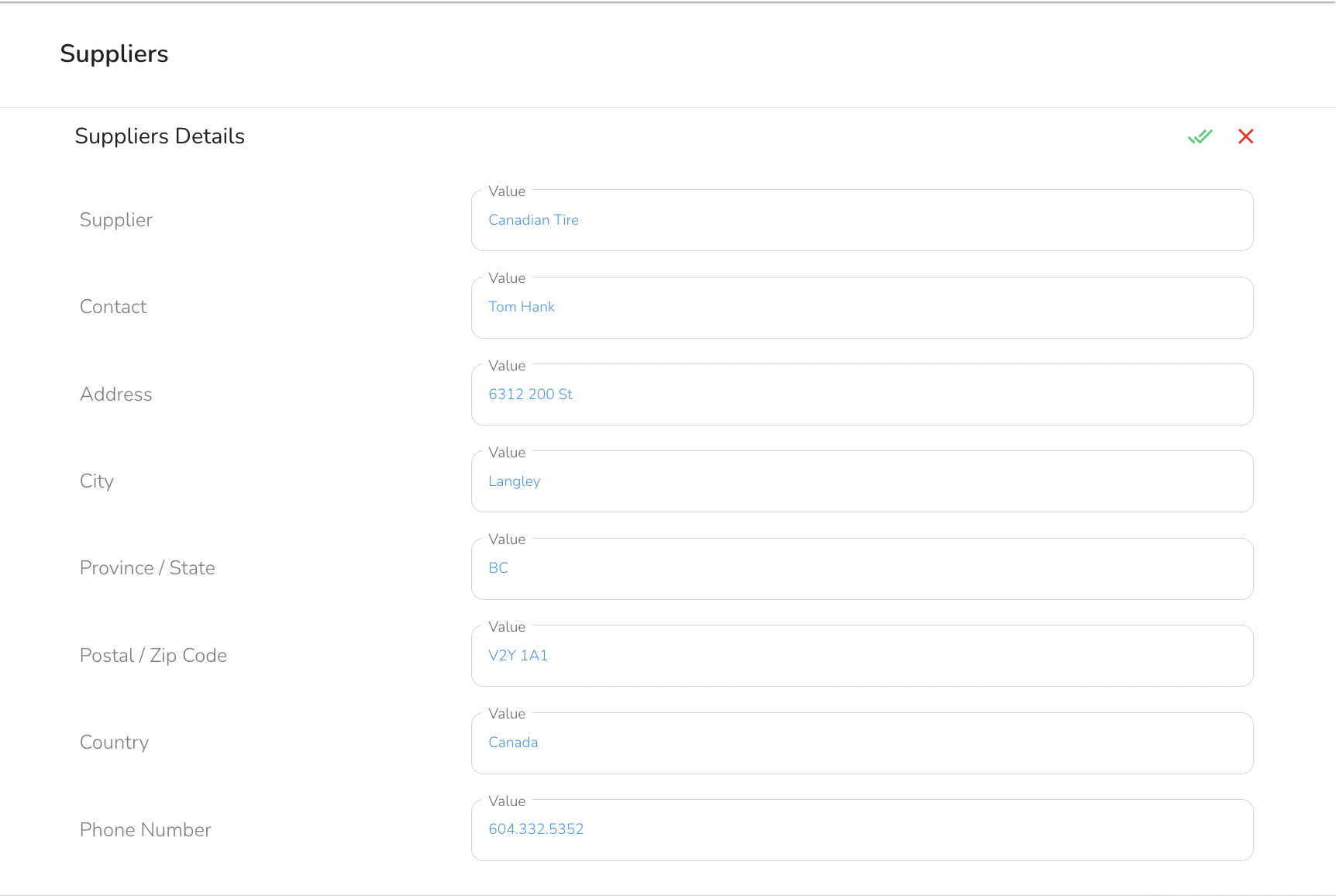
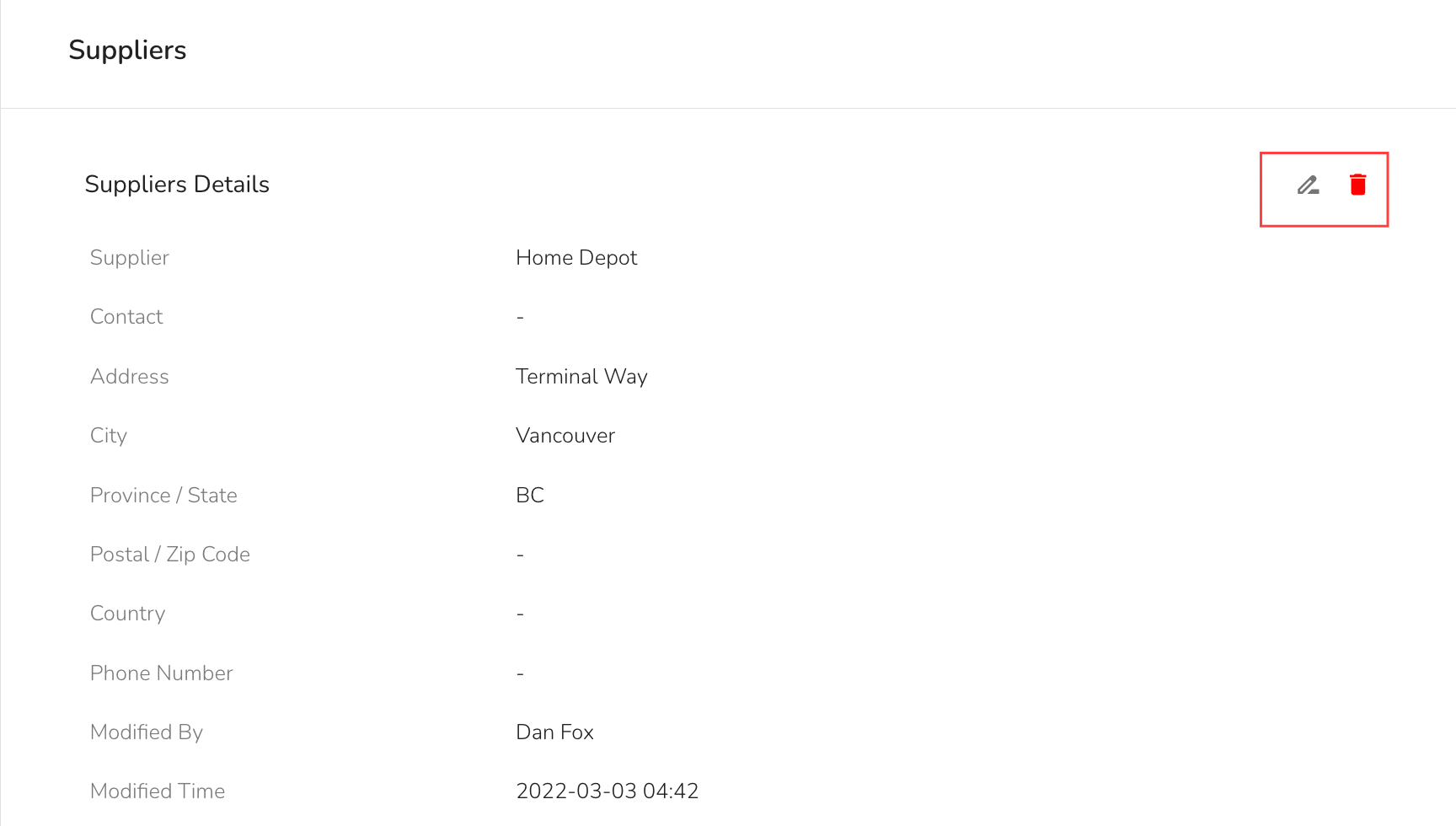
To delete a Supplier, click on the title of the item you wish to delete. In the slide-out, you can click the red trash sign to delete.