Mapping QR Codes
Last updated
Mapping QR codes to your assets or spaces in BuiltSpace is an essential step in asset management. This guide provides a step-by-step process to ensure that your QR codes are correctly linked to the intended assets or spaces.
Follow the steps below to Map a QR code to an asset:
- Accessing Buildings and Assets:
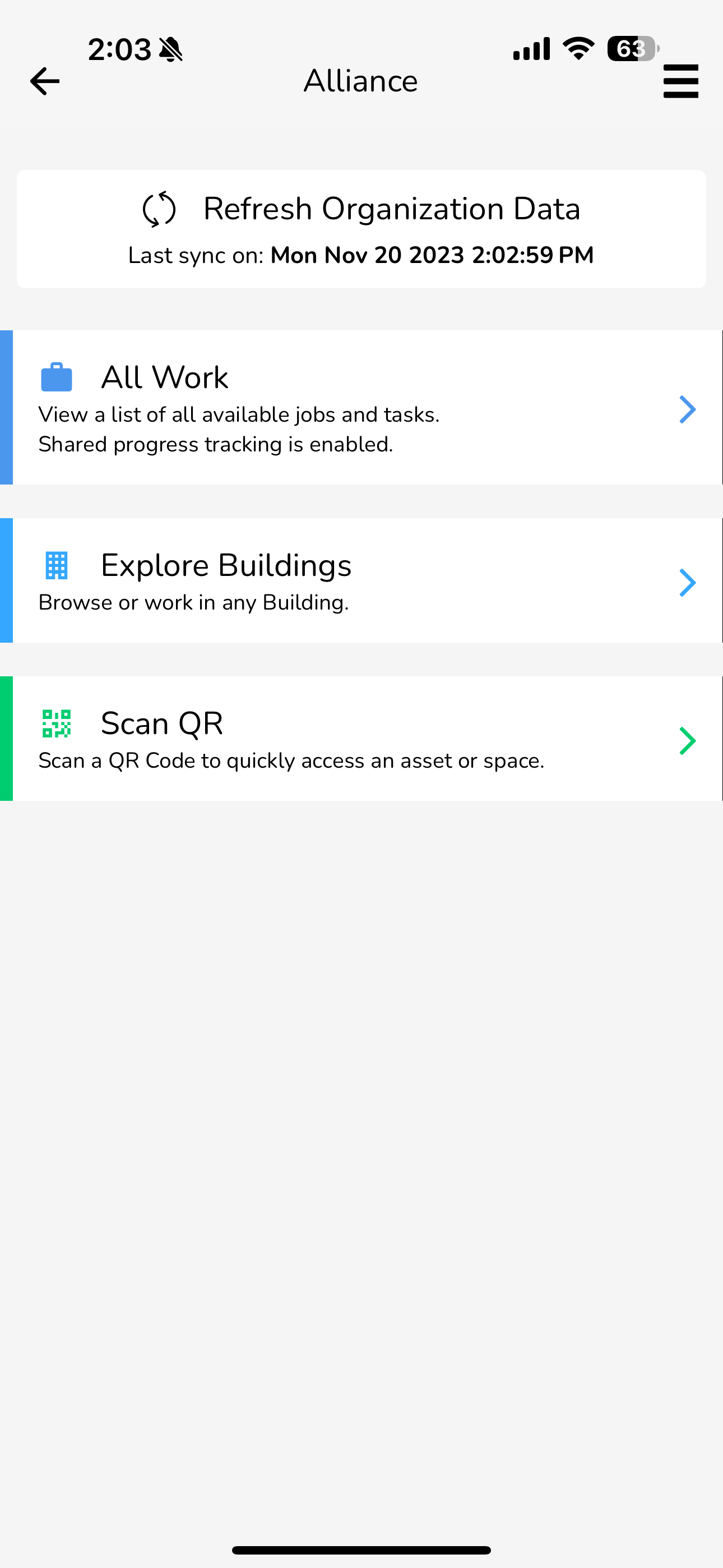
- Launch the BuiltSpace application.
- Select the Explore Buildings button to view a list of buildings.
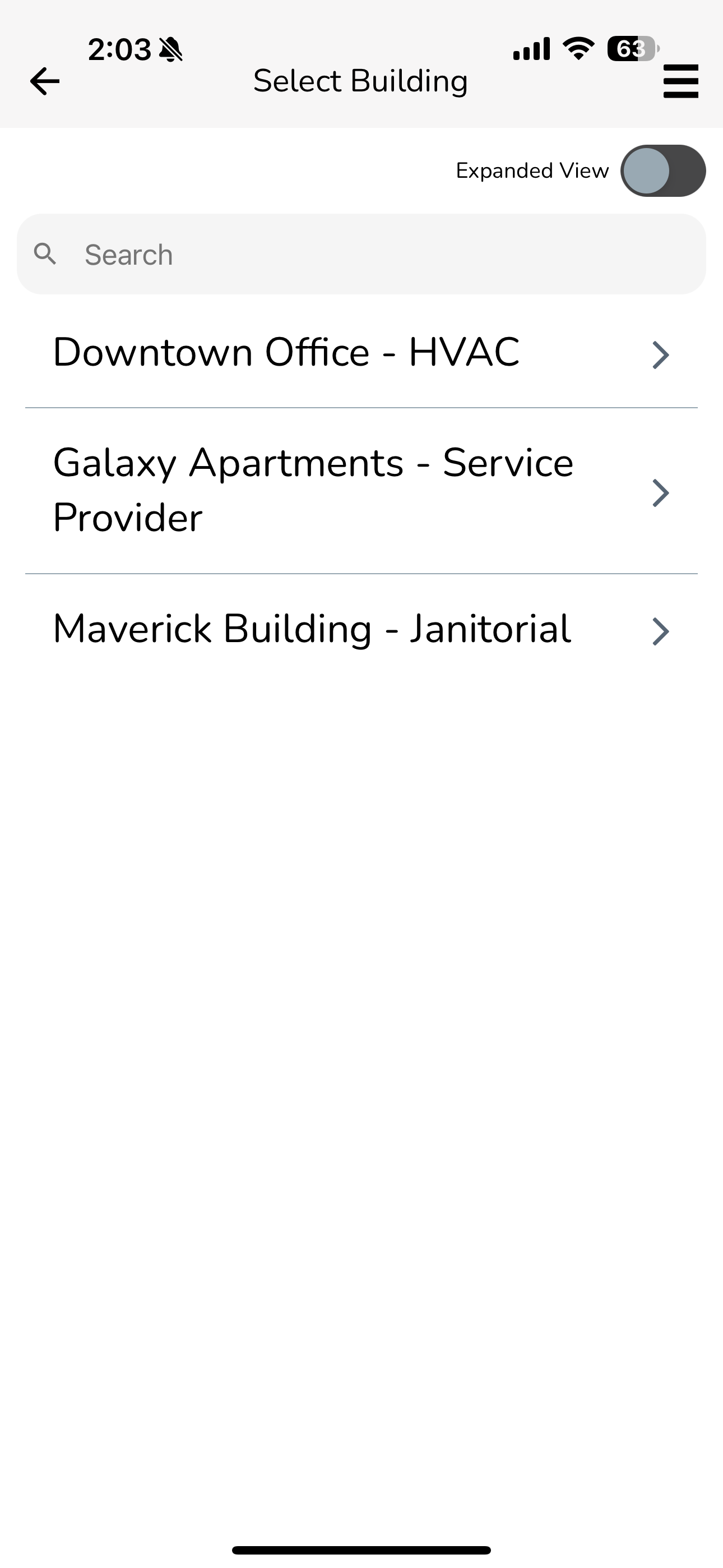
- Choose the building that contains the asset you want to map.
 .
.
- Selecting the Asset:
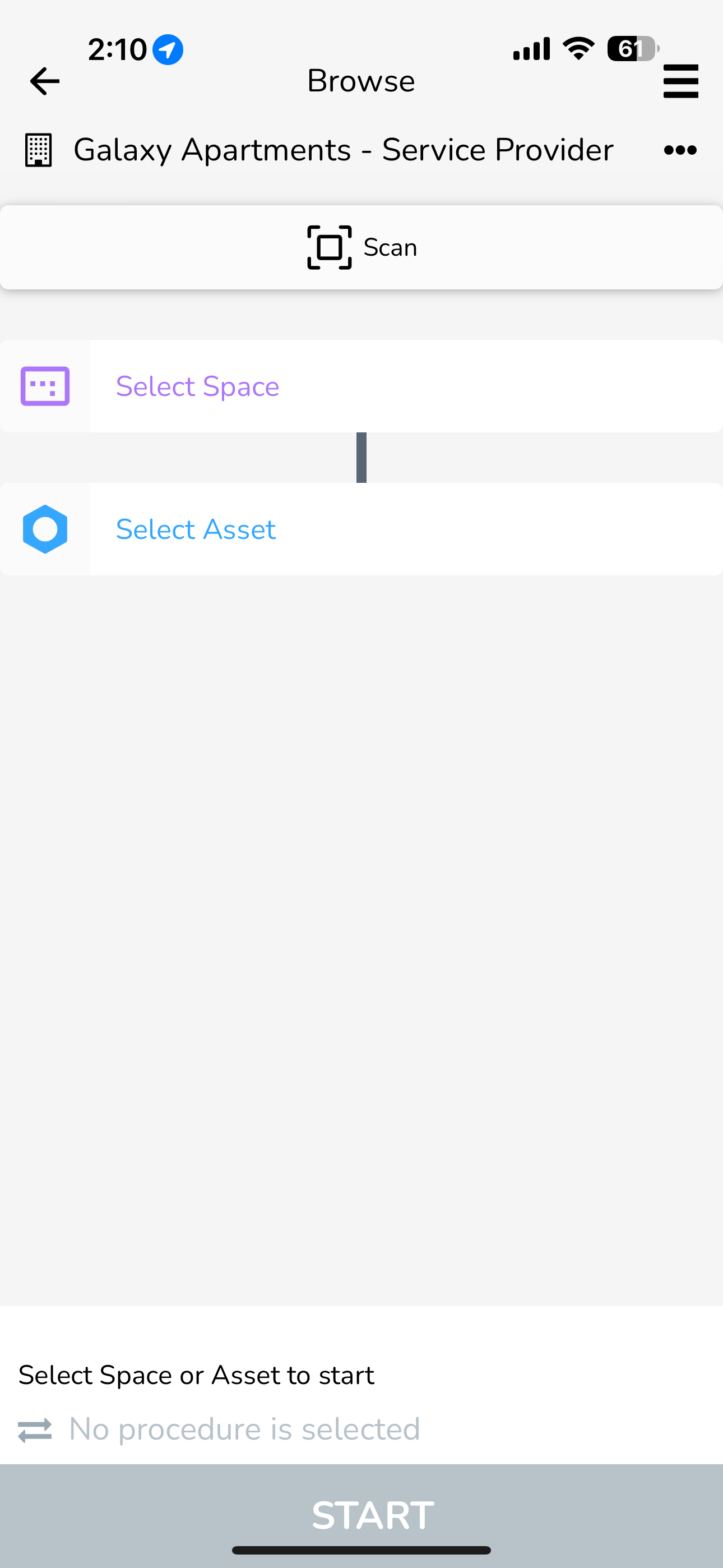
- Within the building's profile, locate and click on the Select Asset button.
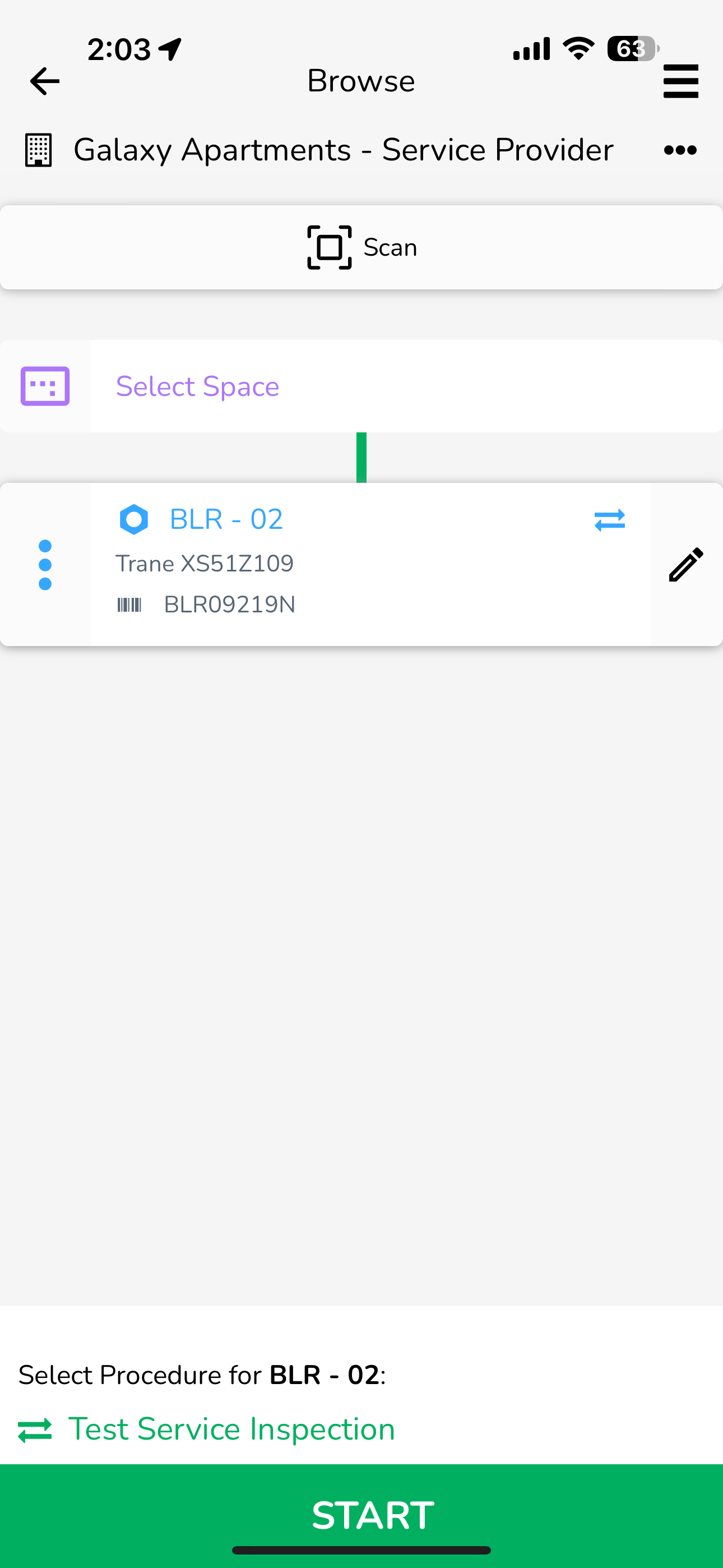
- Choose the specific asset you intend to map with a QR code.
- Camera Permission:
- Ensure the application has permission to use your device’s camera. This permission is crucial for scanning QR codes.
- If prompted, accept the camera permission request.
- Scanning the QR Code:
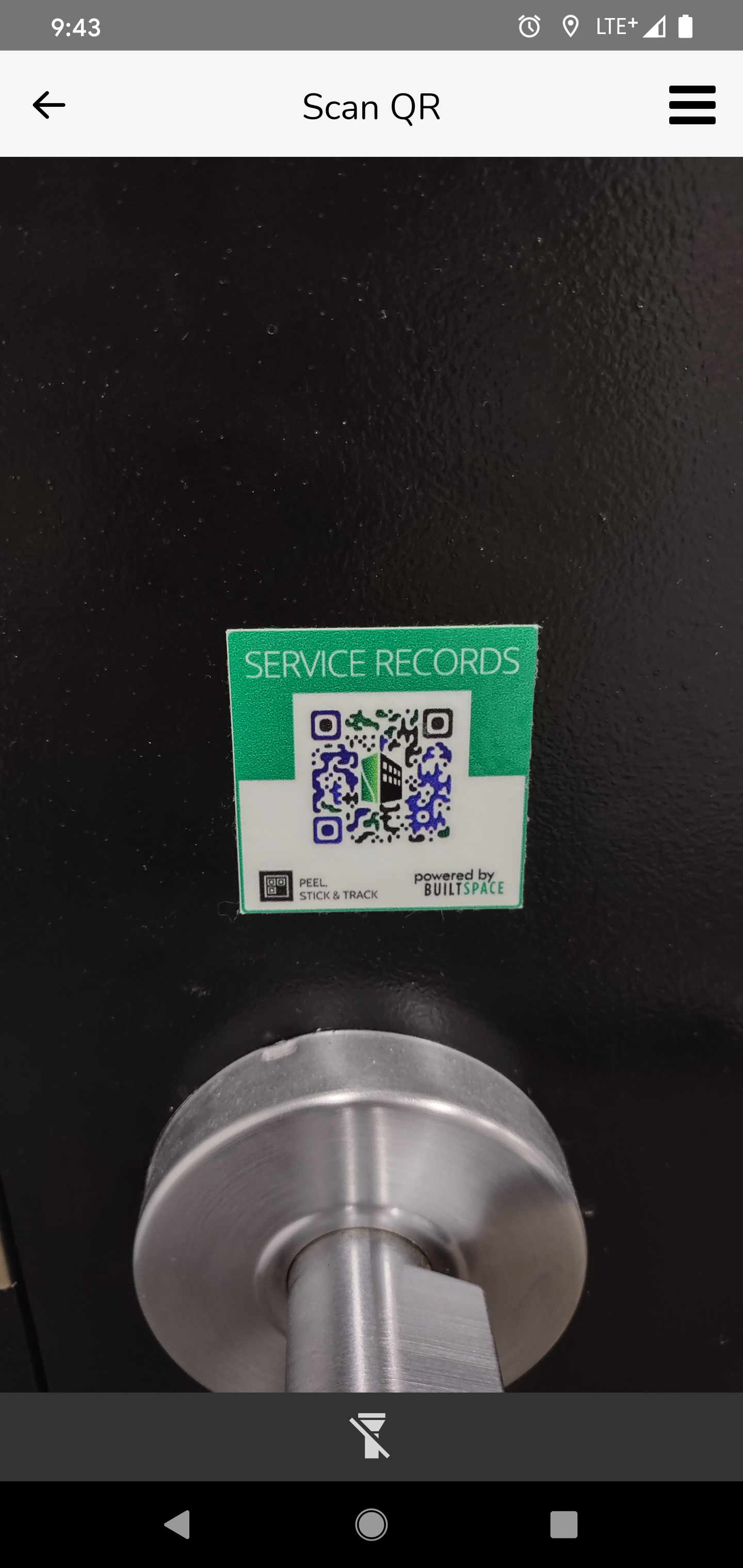
- Click on the Scan button to activate the camera.
- Aim the camera at the QR code. The code should be recognized almost instantly. If not, adjust the camera's position for better focus.
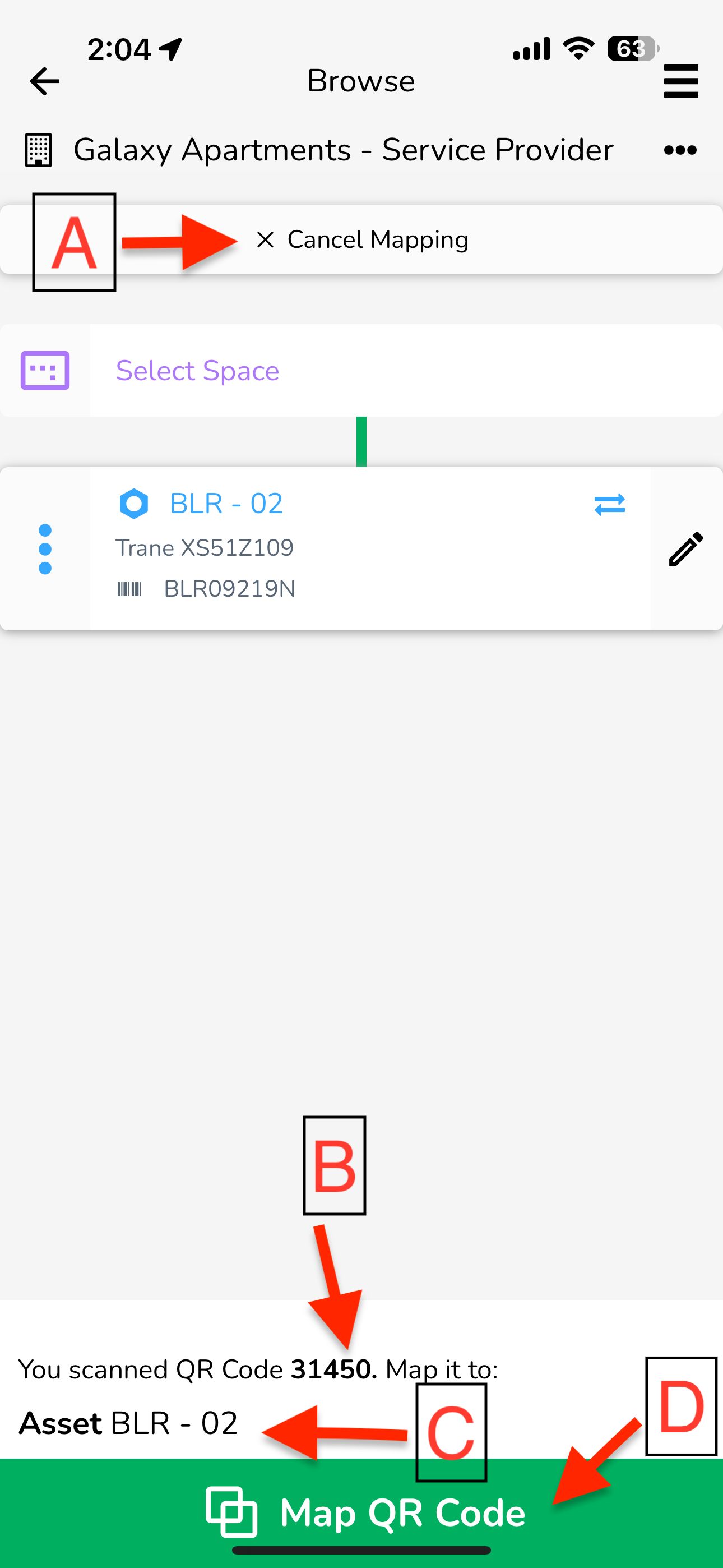
Mapping Confirmation Screen:
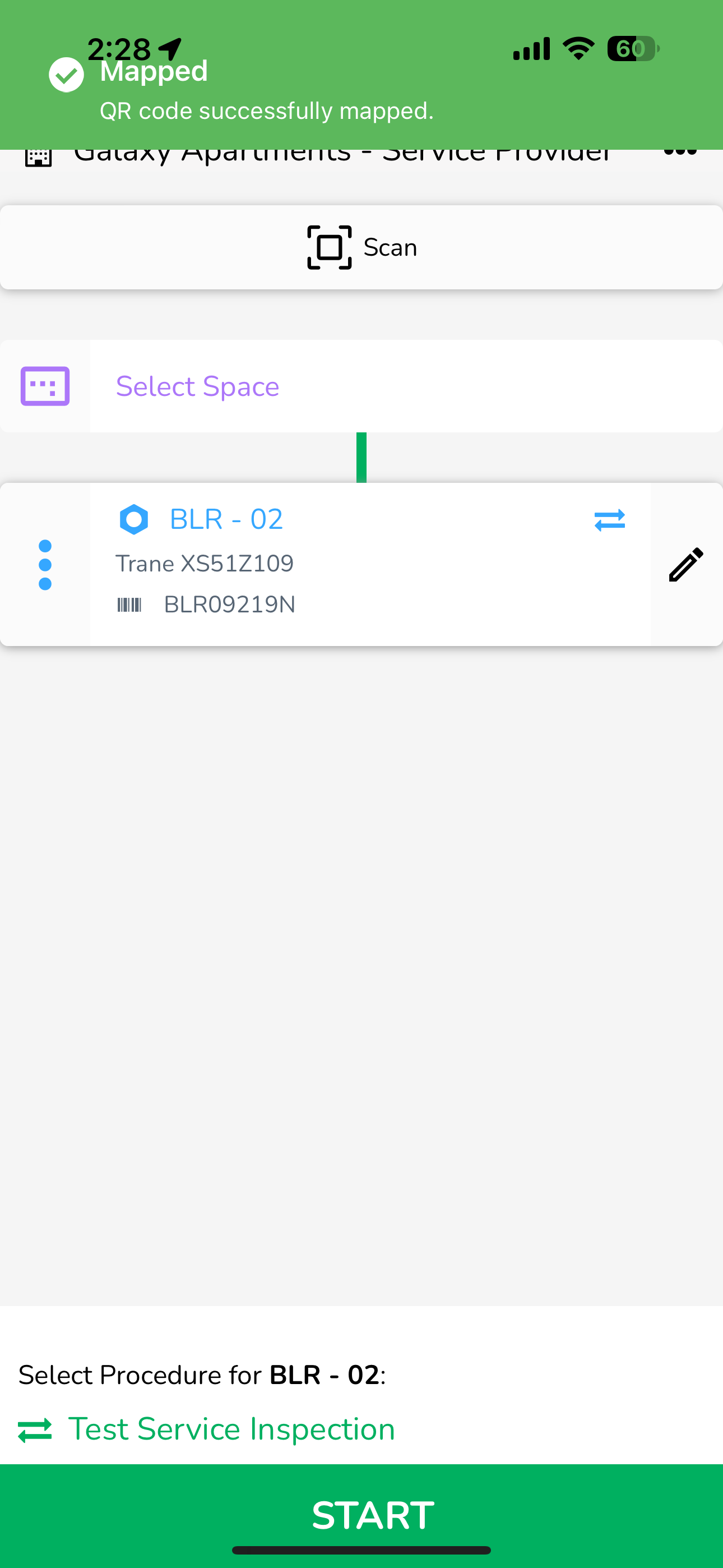
- Completion Notification:
- Once the mapping is successful, a message will display: "QR code successfully mapped".
Important Notes:
- Each QR code has a unique ID and is initially unassigned. It is the technician's responsibility to correctly map these codes.
- If you encounter issues with scanning, ensure the QR code is well-lit and the camera lens is clean.
By following these steps, you can efficiently map QR codes to assets or spaces in BuiltSpace, enhancing your asset management and tracking capabilities.