Uploading, Downloading and Managing your Files
Last updated
This article will teach you the following:
- How to upload files
- Rules & limitations - file size, acceptable file types
- Downloading files
- Downloading folders as a zip file
- Creating or canceling public links of a file
- Uploading a public link to an Asset Property
- Version History of a file
- Deleting a file or a folder
How to upload files
- From the Documents page, click on the from the top-right corner.
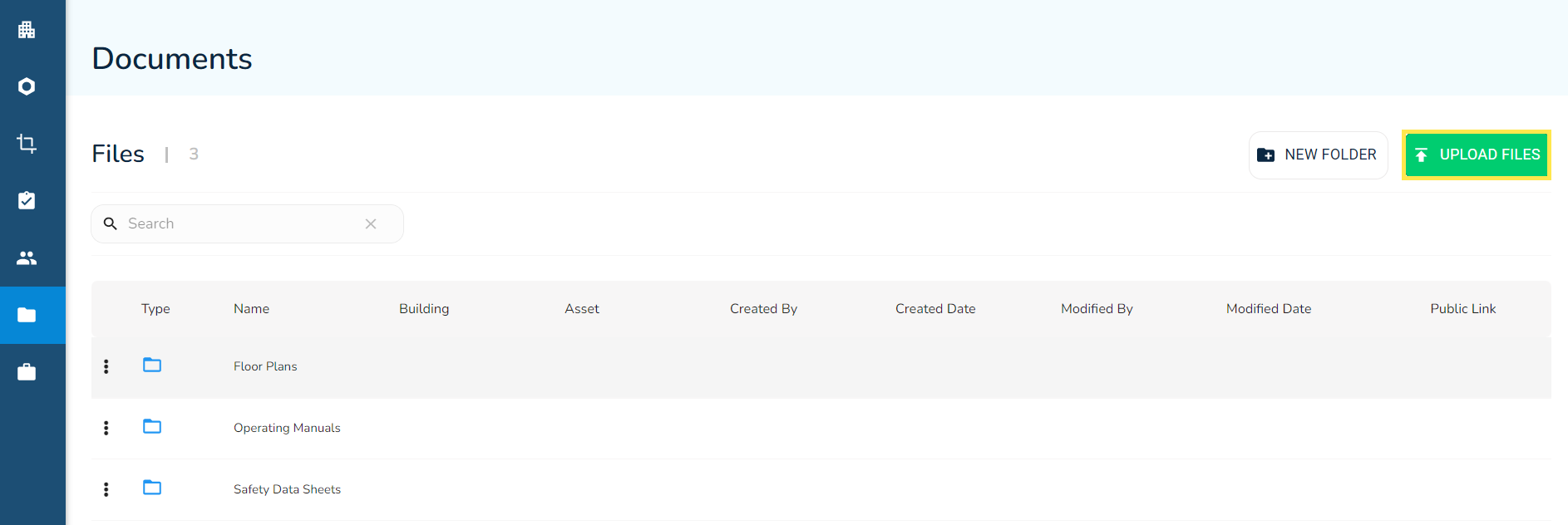
- Select a single file or multiple files and click on Upload when done.
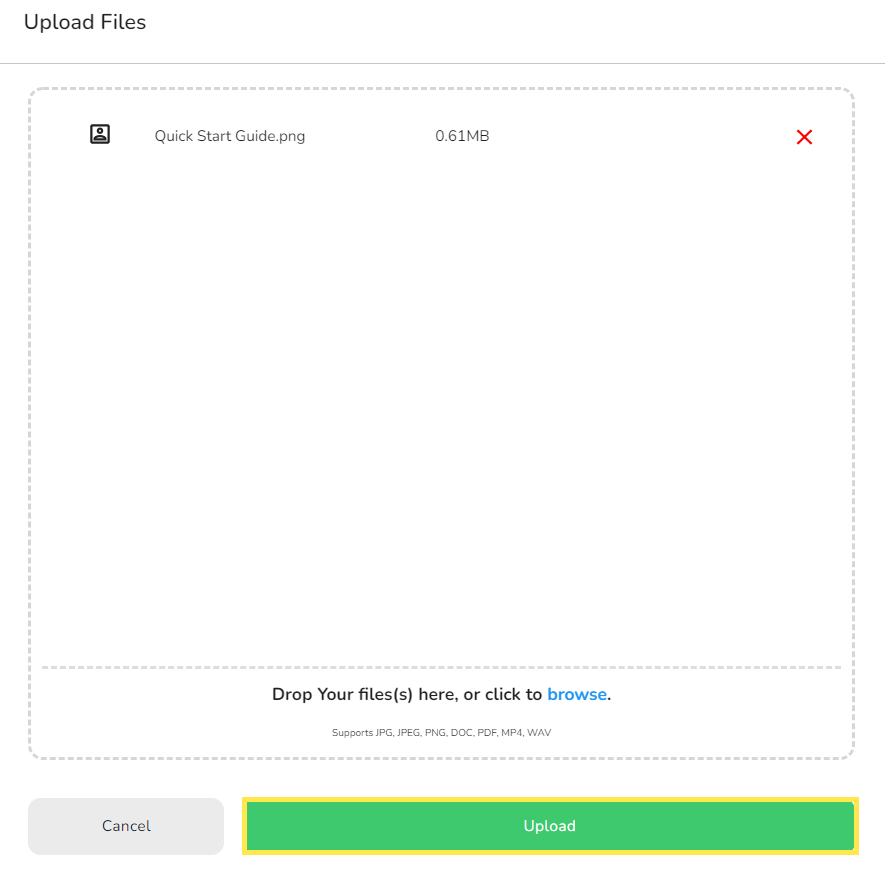
Rules & limitations - file size and acceptable files types
<p>The maximum size limit for any type of file is set to <strong>500</strong><strong> MB</strong>. You can store files that are of various formats such as DOC, XLS, XLSX, PDF, JPG, JPEG, GIF, TIF, MP4 & WAV. </p>
Downloading files
Click anywhere on the row of the file, and the file will either be downloaded to your computer or opened in the new tab depending upon the settings of your browser.
Downloading folders as a zip-file
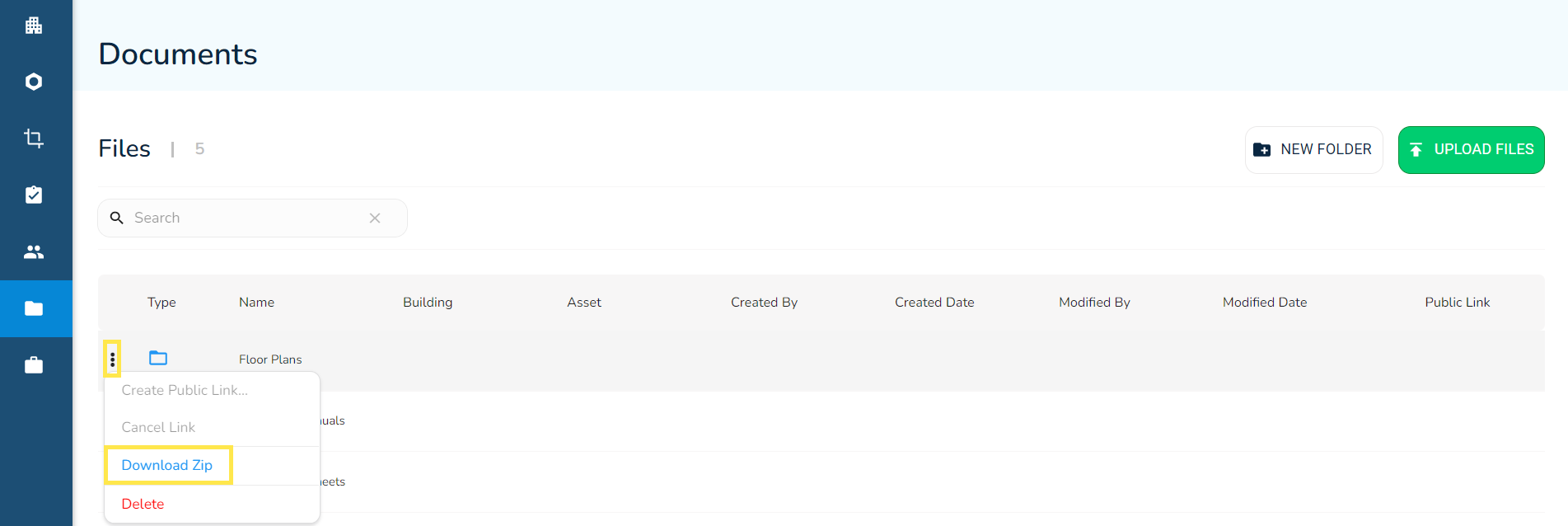
Click on the three vertical dots in a row of a file and select Download Zip. The entire folder and its contents will now download to your device as a zip file.
Create or cancel a public link of a file
- On any file, click on the three vertical dots and select Create Public Link.
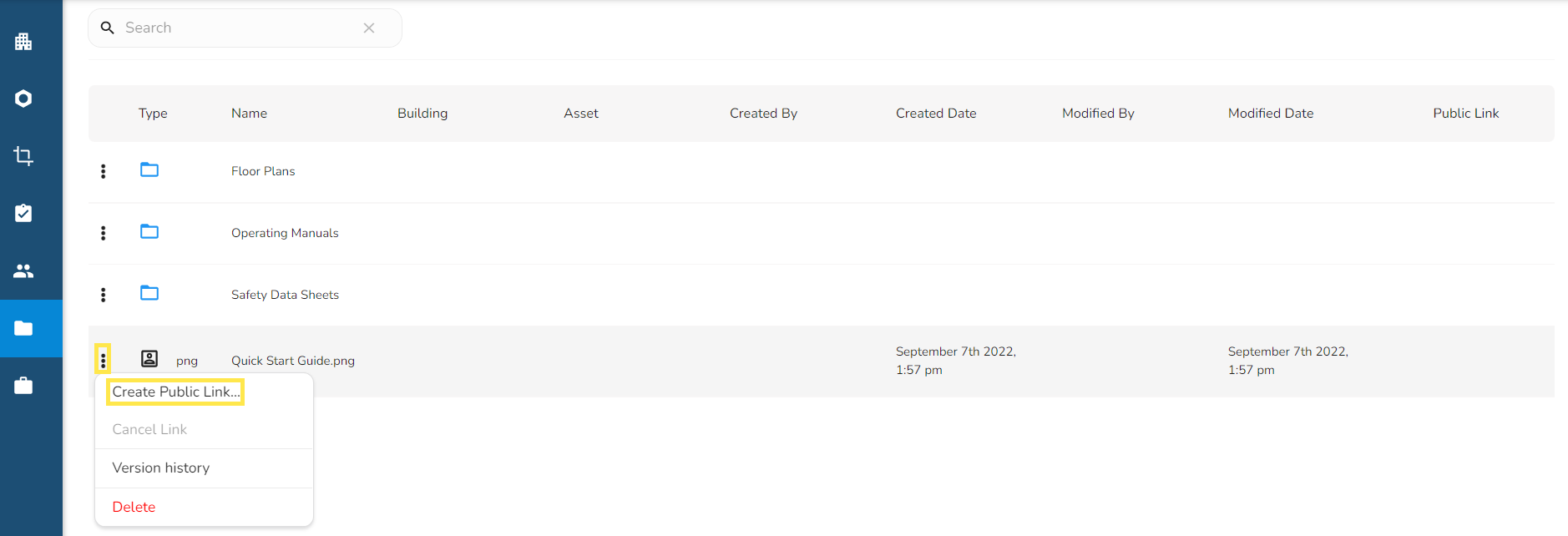
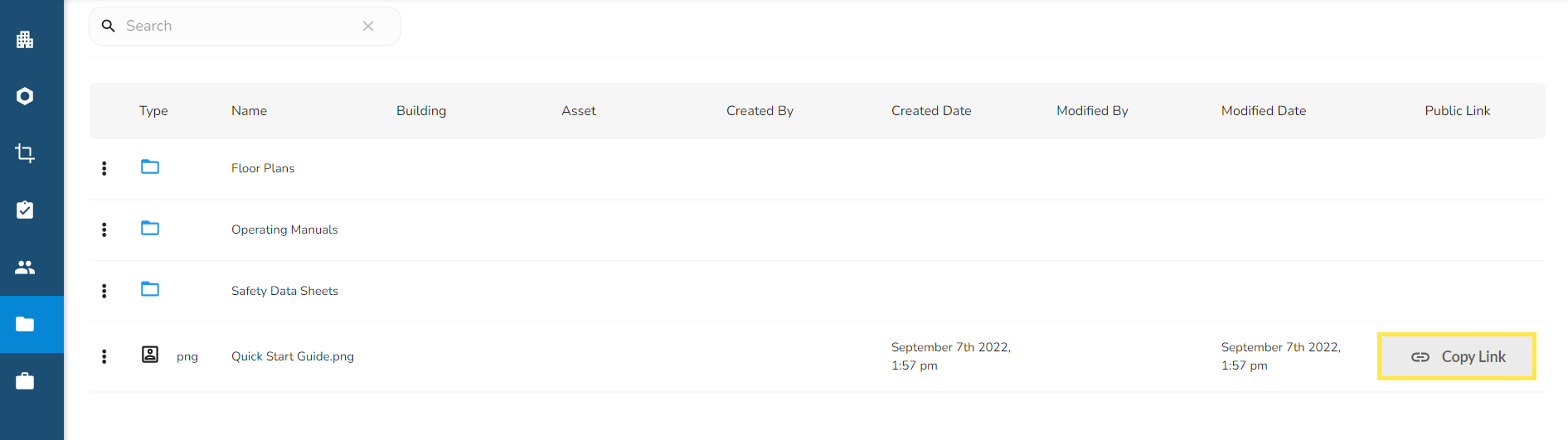
- The link will be displayed under the Public Link column of that file where you will see a Copy Link button appear. Click this to copy the link to your clipboard.
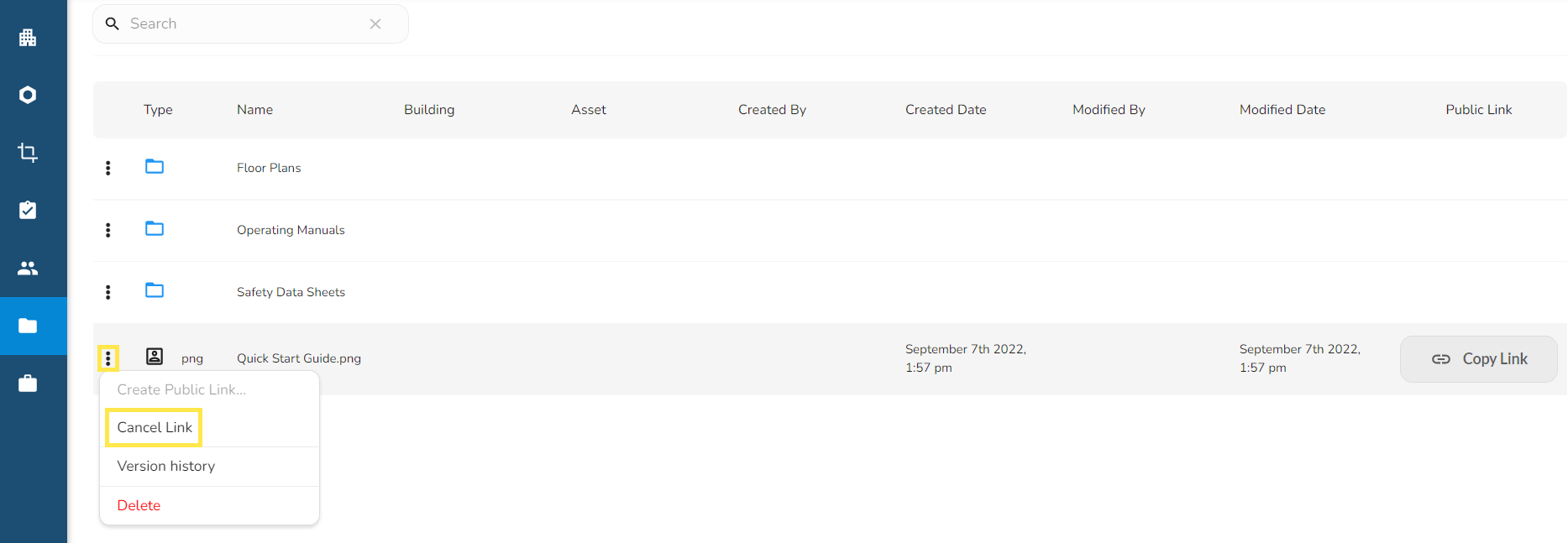
- To cancel a Public Link, click on the three vertical dots again and select Cancel Link.
Uploading a Public Link to an Asset Property
For uploading a Public Link to an Asset Property, we will need to use a combination of the new BuiltSpace Admin Portal web app (v2) and the previous web app version of BuiltSpace (v1).
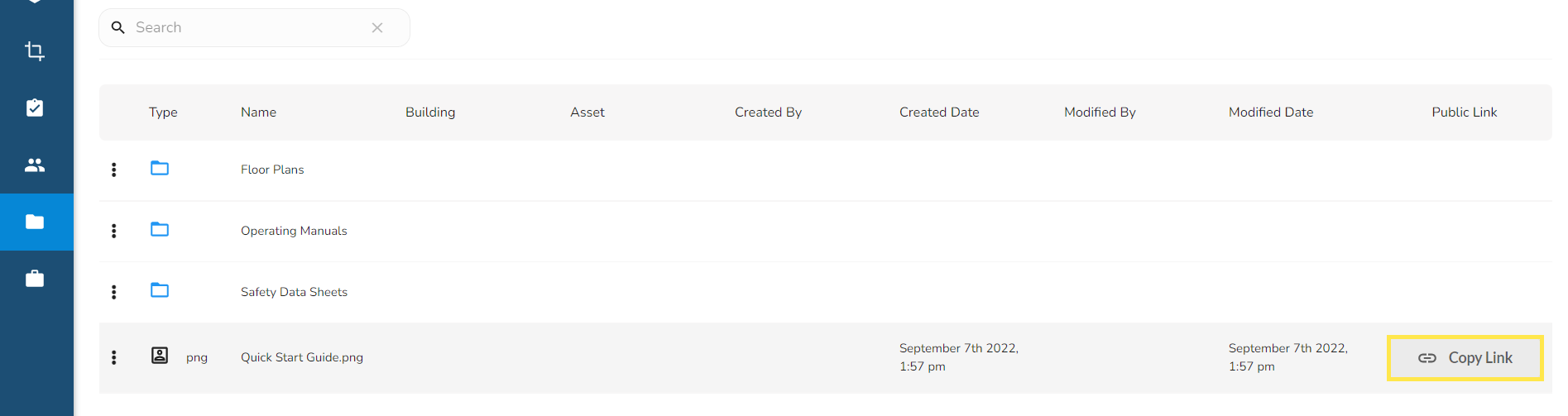
- From the Admin Portal, click on Copy Link.
- Follow the steps on How to Mass Import Asset Properties.
Version History
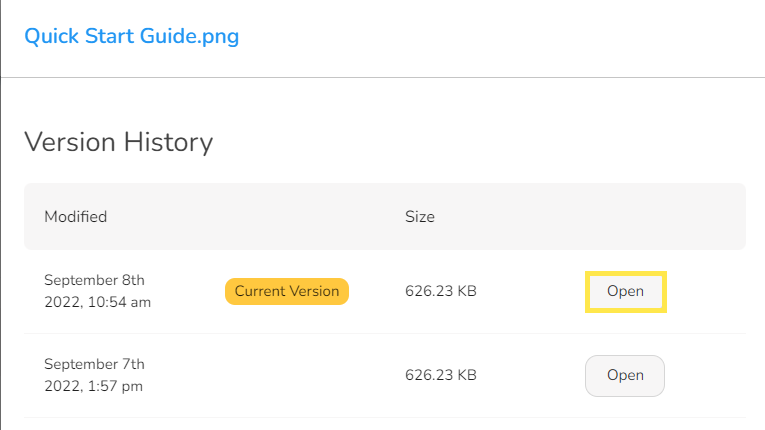
The Version History feature will let you see any of the file's previous versions. It also allows you to open the previous file versions. Please follow the steps below:
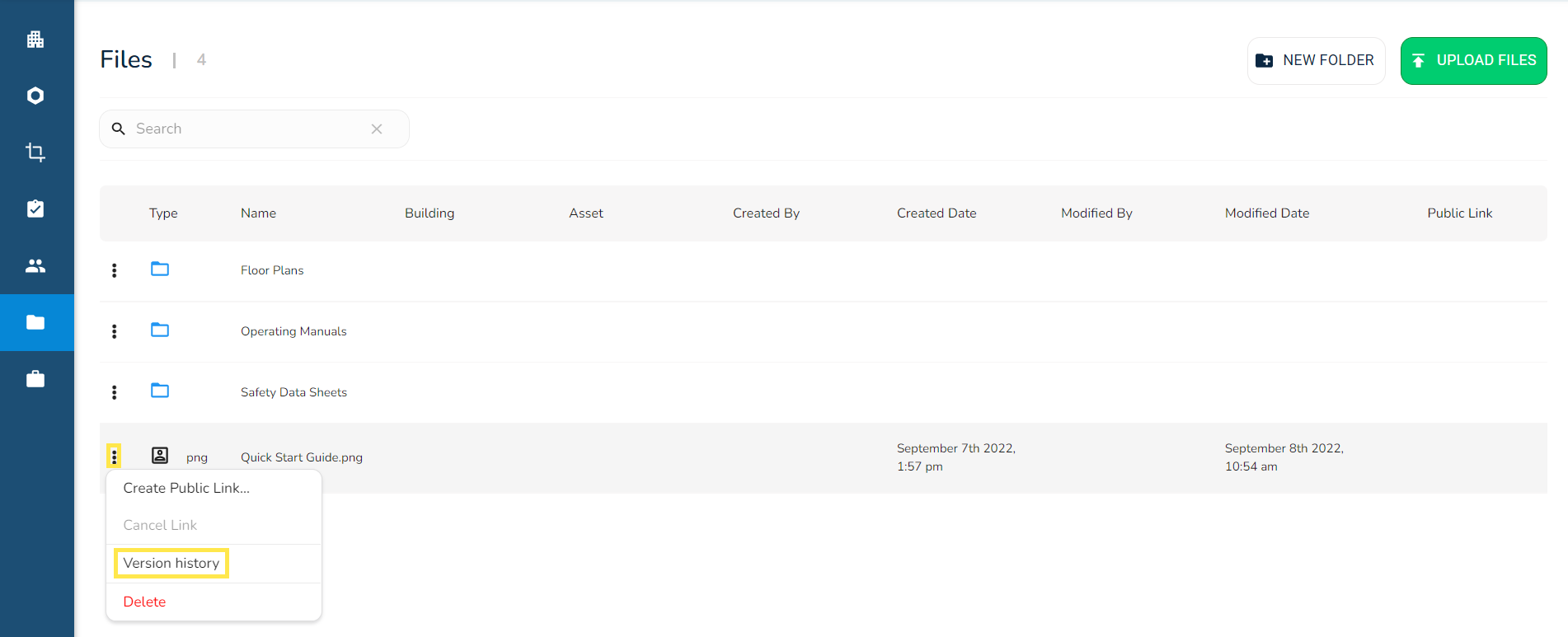
- On the Documents page, click on the three vertical dots of the file and click on Version History.
- A slide-out panel will open displaying the Version History. By clicking on Open, the file will either be downloaded or opened in a new tab depending on your browser settings.
Deleting a file or a folder
To delete a file or a folder, simply click on the three vertical dots of the file/folder and then on Delete.