How to move Assets between different Buildings
Last updated
- From the top navigation click on Assets.

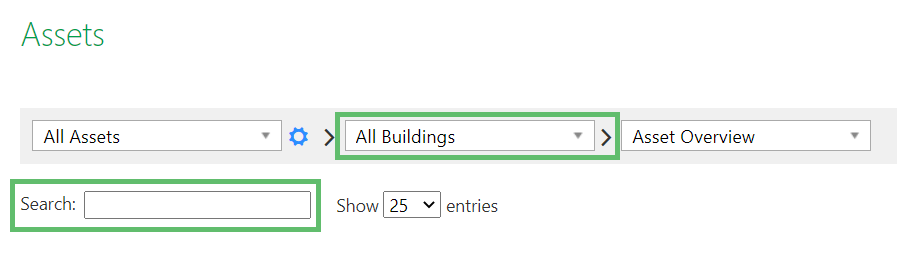
- Select the Building and search for the Asset to narrow the search results.
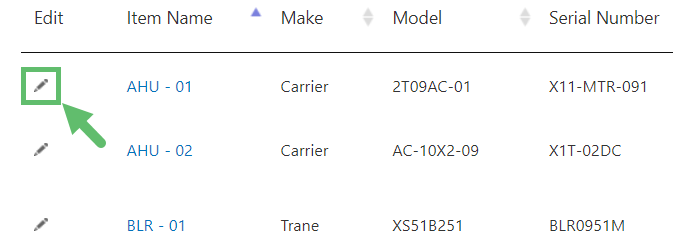
- After the search results are displayed in the data table, click on the Pencil icon under Edit.
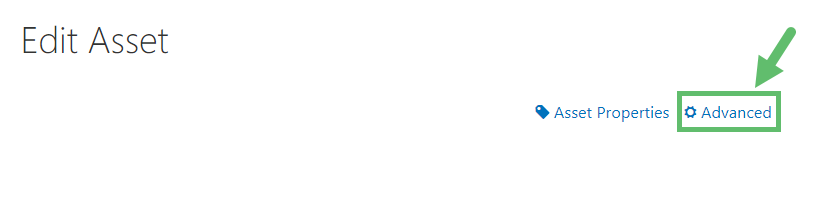
- From the Edit Asset page click on Advanced (top right)
- From the Manage Assets page scroll down and enable Mobile Asset, then click on Save.
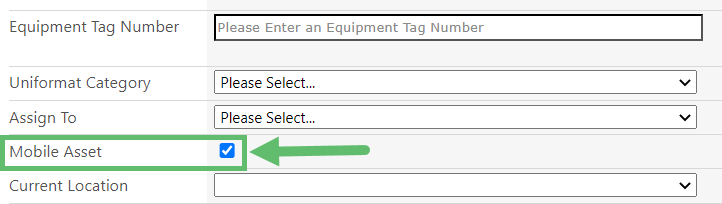
- After clicking on Save the page will refresh. Scroll down and from Current Location, select the Building you want to move the Asset to.
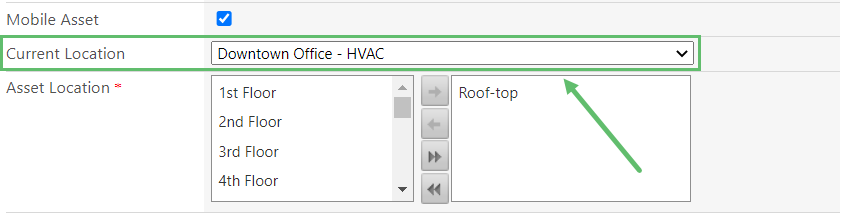
- Set the Asset Location (i.e., Space) by clicking on the right arrow.
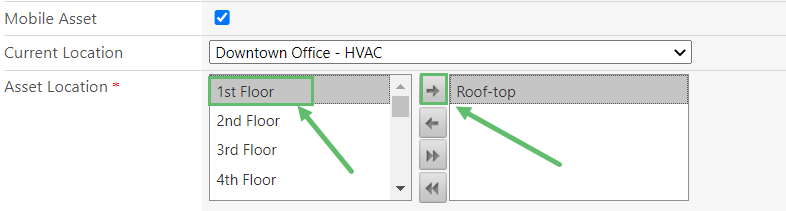
- Scroll to the bottom of the page and click on Save.
Great! Your Asset has been successfully moved from one building to another.