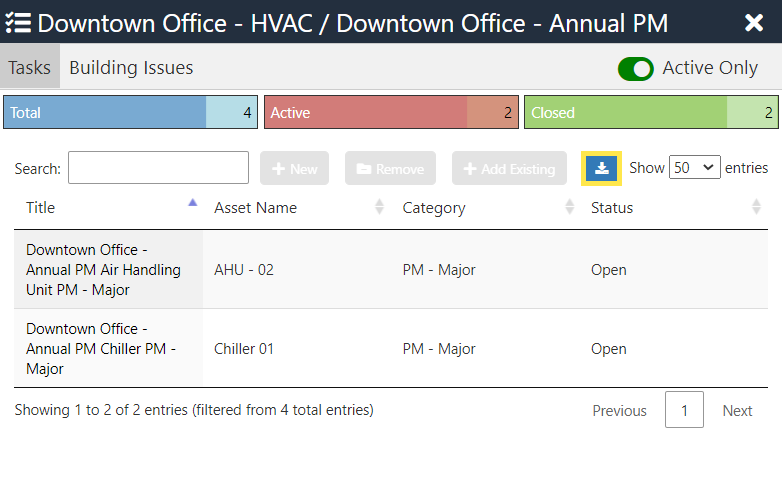
How to Export All Work Data - Jobs & Visits
Last updated
This article will teach you how to export the data table from the All Work page.
The All Work page has 3 sections: Jobs, Visits, and Active Issues. You can export each section's data.
Export data table for Jobs
- Hover over All Work and select Jobs.
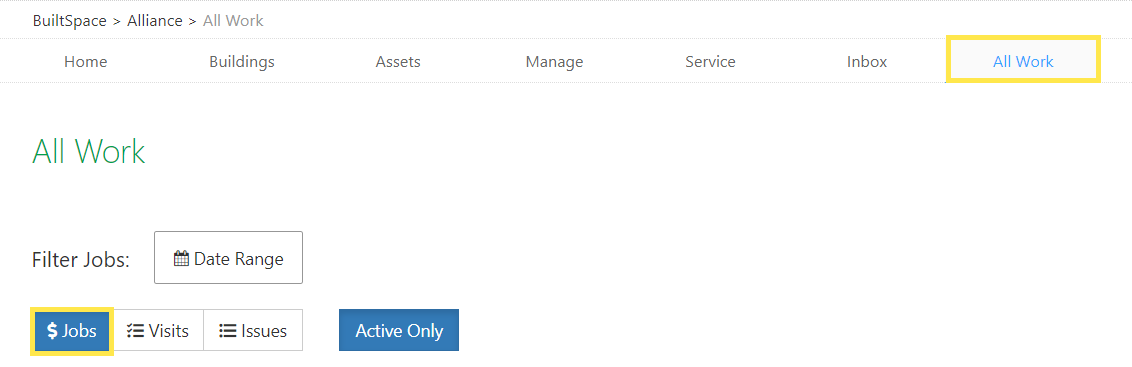
- Narrow your search based on Date Range, by selecting Active Only or by making any selection from the table header row.

A. Date Range
Filter your results by selecting a date range.
B. Active Only
Selecting Active Only will exclude the Jobs that are Closed, Cancelled or Billed.
C. Search
The Search field lets you narrow down the results based on any keyword(s) you enter.
D. Table Header Row
You can further narrow your search based on the different columns from the header row.
- Once you see the desired search result in the display table, click on Export Table to download the search results in Excel.

Export data table for Visits
- From the All Work page, select the Visits tab.
- Narrow the search results by using the "Filter Work" menu.

- Once you see the desired search result in the display table, click on Export Table to download the search results in Excel.

Export data table for Tasks
- In order to export the Tasks of a Visit, simply click on Tasks in the left-most column of the Visit you want to export the Tasks from.
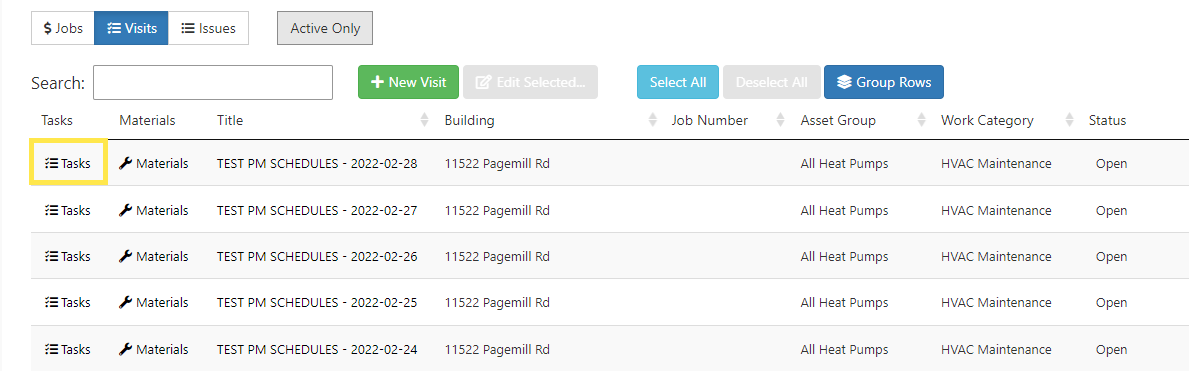
- You will see a list of Tasks associated with that Visit slide out from the right.
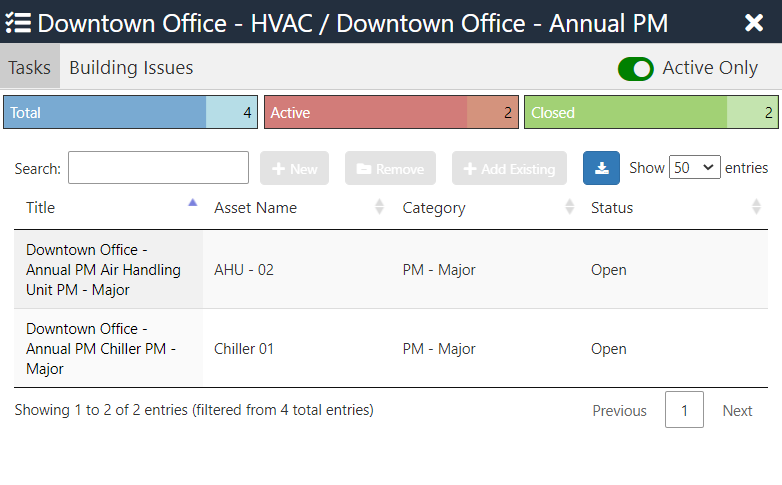
- Once you see the desired search result in the display table, click on Export Table to download the search results in Excel.