How to Download a TimeSheet Report
Last updated
How to Download a Timesheet Report
[!NOTE]
Note:
- Technicians can generate only their own TimeSheets.
- Office Admins can generate TimeSheets for all technicians.
This guide will walk you through the process of generating and downloading timesheet reports from the Admin Portal. This feature allows you to track hours effectively over specific periods.
Step 1: Navigate to the Time Entries Tab
- Log into the Admin Portal: Access the Admin Portal using your credentials.
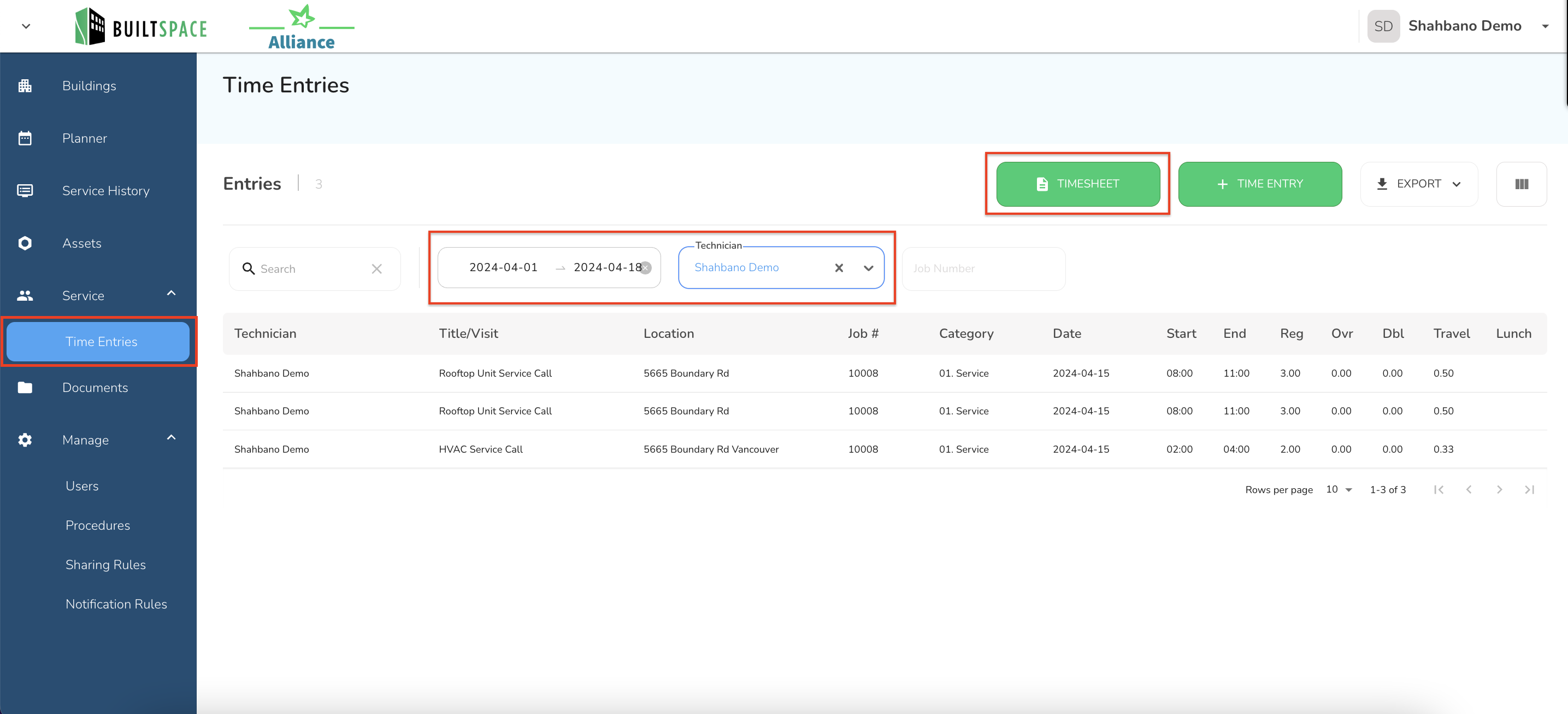
- Proceed to Time Entries: Locate and click on the ‘Time Entries’ tab on the left side of the dashboard.
Step 2: Filter Time Entry Data
- Set Filters for the Report:
- Date Range: Select the start and end dates for which you want the timesheet.
- Technician Name: Select the name of the technician you want the timesheet for.
- Apply Filters: Once you have set all the necessary filters, the portal will display the filtered data corresponding to your selections.
Step 3: Generate and Confirm the Timesheet
- Generate Timesheet: With the data filtered, click on the ‘Timesheet’ button to generate the report.
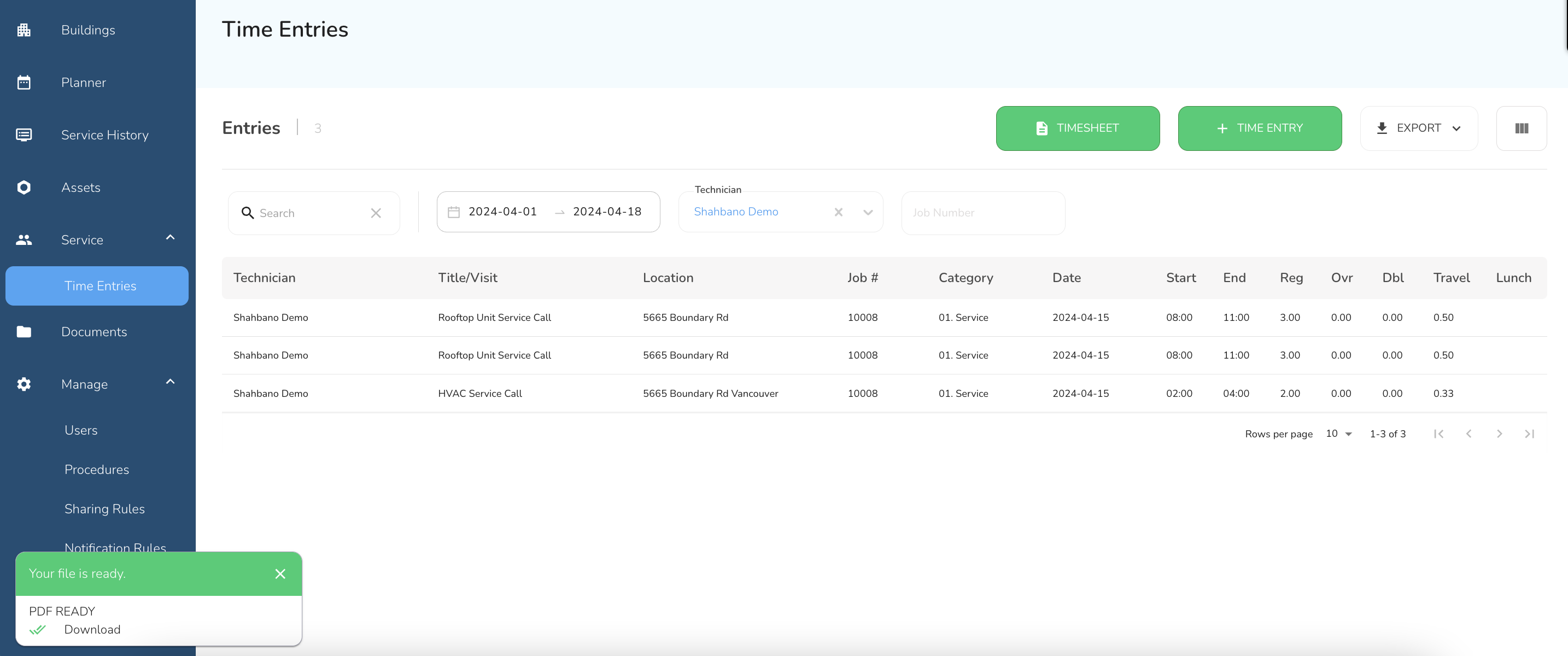
- Confirmation: A confirmation message will appear at the bottom of the screen once the Timesheet is successfully generated. This message includes a link to download the timesheet directly.
Step 4: Download the Timesheet
- Single Timesheet Download: For individual downloads, click on the confirmation link provided in the message at the bottom of the screen.
- Multiple Timesheets Download:
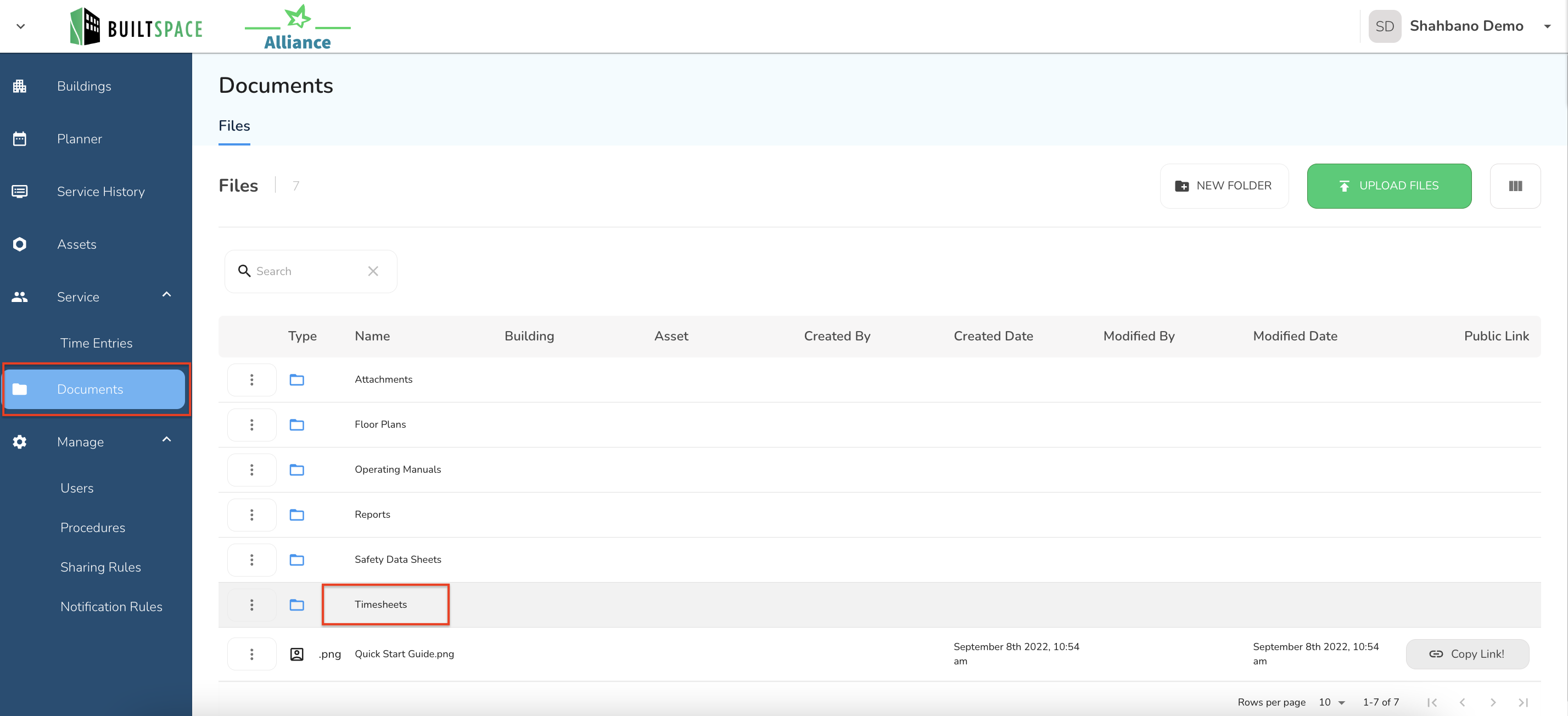
- Navigate to the Documents Tab: Click on the ‘Documents’ tab on the left side.
- Access the TimeSheets Folder: Inside the Documents tab, locate and click on the ‘TimeSheets’ folder.
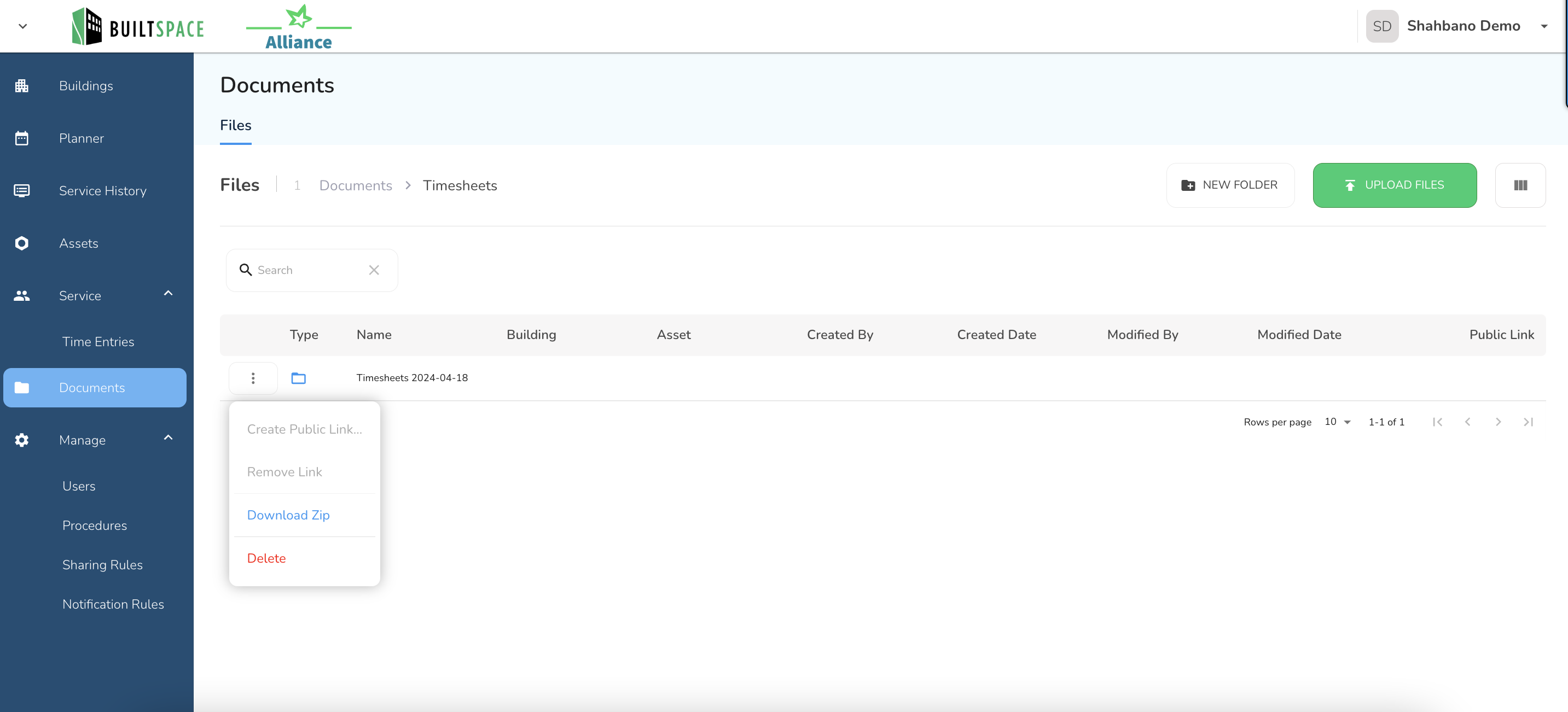
- Download as ZIP: If you need to download multiple timesheets, you can find them organized by date within this folder. Click on the desired folder and download it as a ZIP file for convenience.
- View Individual Timesheets: Open the folder to view all the timesheets within it. You can also choose to download them individually.
Completion
- Review Downloads: After downloading, ensure that the files have been saved correctly to your computer and contain the accurate information as per your filters.
- Print or Share: You can now print or distribute the timesheets as needed within your organization.